


The Torgsoft mobile app — is an additional option that connects a smartphone or tablet to the accounting program and provides access to sales, warehouse, inventory, finances, and reports right from your phone. The owner controls the store remotely, while the employee works with the goods without a stationary computer.
The option is suitable for owners and managers who are often outside the store, as well as for employees who receive, move, photograph, and count goods near the shelves or sell off-site.
When connected to the server, data is transmitted to the Torgsoft working database. Inventory can be conducted offline: you can pre-download the record to the smartphone, count the goods without a server connection, and upload the result after restoring the connection. The app features 28 modes for working with goods, sales, orders, finances, reports, and personnel. PRRO, bank terminals, and a Bluetooth printer are connected separately in the sales and printing settings. The specific set of features depends on the license, activated functions, and user rights.
Work with goods, sales, and the store from a smartphone
The Torgsoft mobile app connects to the store's working database. The owner and employees can check balances, receive goods, conduct inventory, sell, process returns, work with PRRO, and view reports.
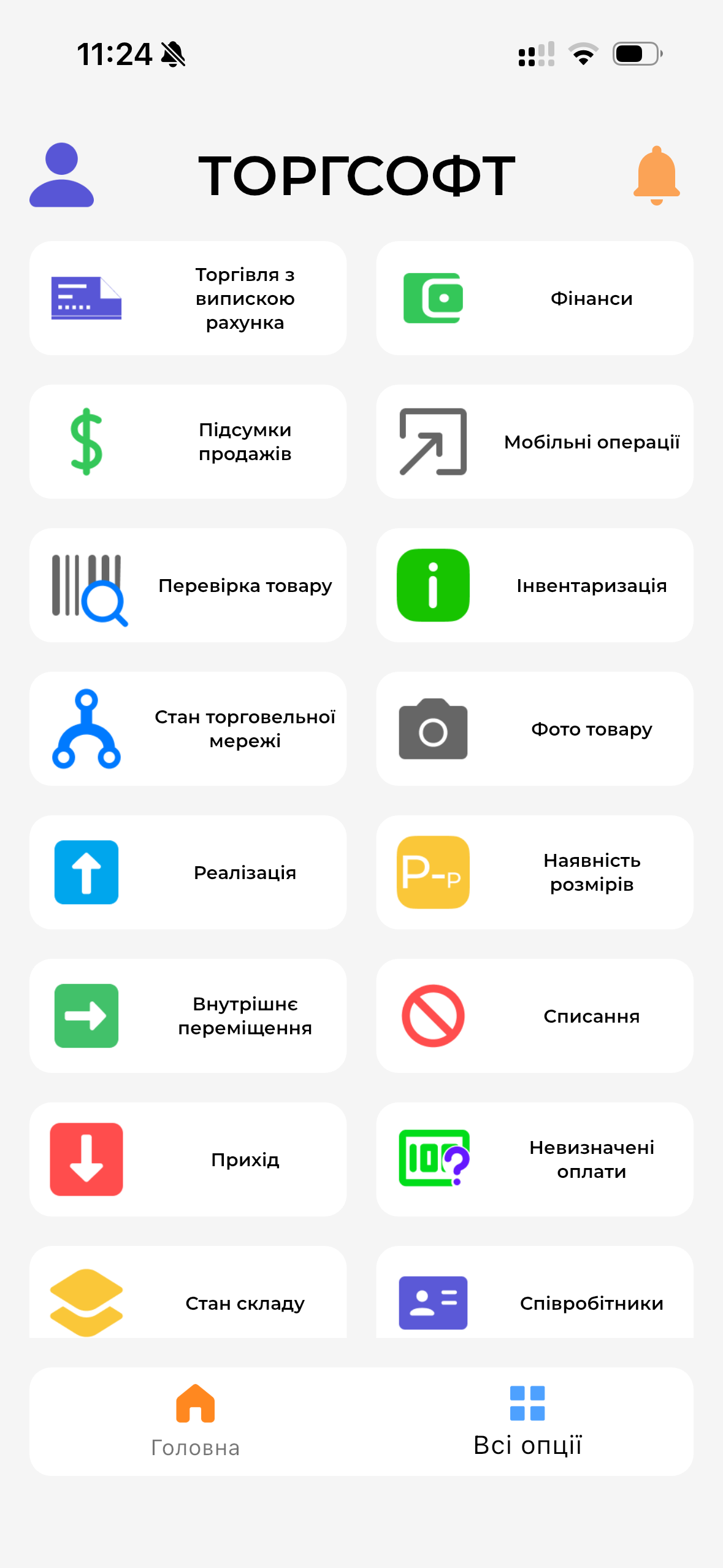
Mobile app features
What you can do from a smartphone
In the app, an employee performs essential operations with goods in the sales area, warehouse, receiving area, or next to the buyer.
Check goods and balances
The employee scans the barcode, finds the product, views the price, quantity, photo, and storage location. Sizes and model balances by accounting centers are shown in the separate "Size availability" mode. Depending on granted rights, they can view the last purchase price or change the selling price.
Practical result: the seller answers the buyer and checks the warehouse without going to a computer.
Receive and move goods
Receipt, invoice check, register of receipt invoices, internal transfer, write-off, and order receipt and issuance are available in the app. Goods can be added by scanning or selecting from the warehouse.
Practical result: documents are generated during actual work with the goods.
Conduct inventory
The employee opens an existing record or creates a new one, scans products, enters the quantity, and views the added items. For offline work, the record is pre-downloaded to the smartphone, the server connection is turned off, the count is performed, and after the connection is restored, the result is uploaded to the database. The administrator can restrict viewing the accounting quantity and access to selecting goods from the warehouse.
Practical result: counting is done near the goods, including in premises without a stable internet connection.
Sell and process returns
The seller adds a product and client, processes cash or cashless payment, uses bonuses, processes returns, and receives a receipt. A PRRO can be connected for fiscal sales.
Practical result: sales and returns can be done from a smartphone.
Modes for the owner, warehouse, cash register, and personnel
28 modes are available in version 3.0. Frequent actions can be added to the main screen, and their order can be changed.
- Goods and warehouse: warehouse state, storage location, size availability, product photo, equipment accounting.
- Warehouse documents: receipt, goods check, receipt invoices register, write-off.
- Goods movement: internal transfer and inventory.
- Sales: sales, returns, price checker, and unidentified payments.
- Orders: order receipt and issuance, and trading with invoice issuance.
- Clients: client cards, discounts, bonuses, and last sale history according to access rights.
- Reports: sales totals, cash report, sold goods, and goods report.
- Analytics: period analysis, statement for a period, balance with partners, and finances.
- Retail network: retail network status and data by accounting centers.
- Employees: staff, workday registration, and salary calculation.
- Cash operations: cash collection, revenue deposit, and other available mobile operations.
- Additionally for payment and receipt: PRRO, bank terminals, and Bluetooth printer for Android are configured within sales and returns and are not included in the list of 28 modes.
The set of modes depends on the configuration. The user sees the functions that are available in their license, activated in Torgsoft, and permitted in the access settings.
What the Torgsoft 3.0 mobile app looks like
Click on the image to open the screenshot in full size.
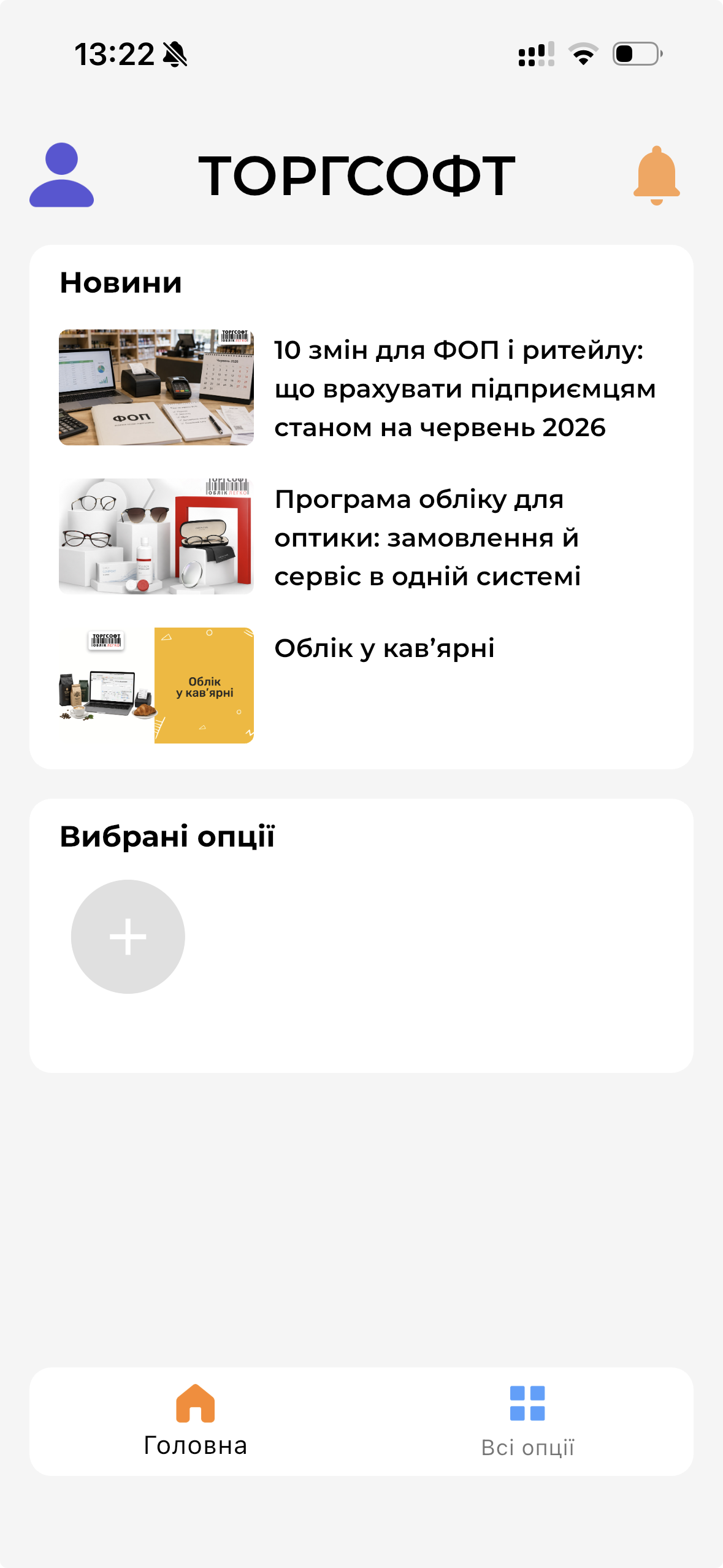
News and user-selected modes.
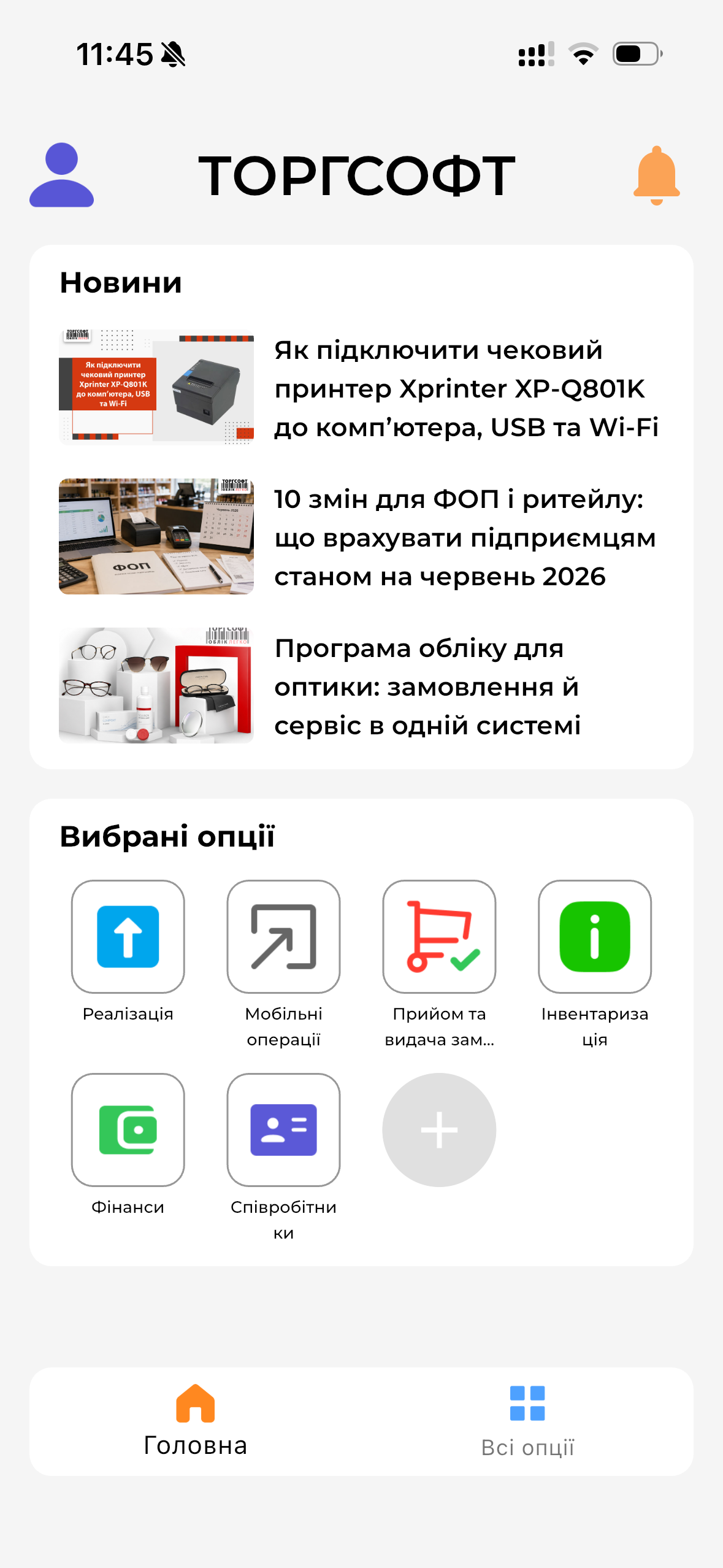
Quick access to daily operations.
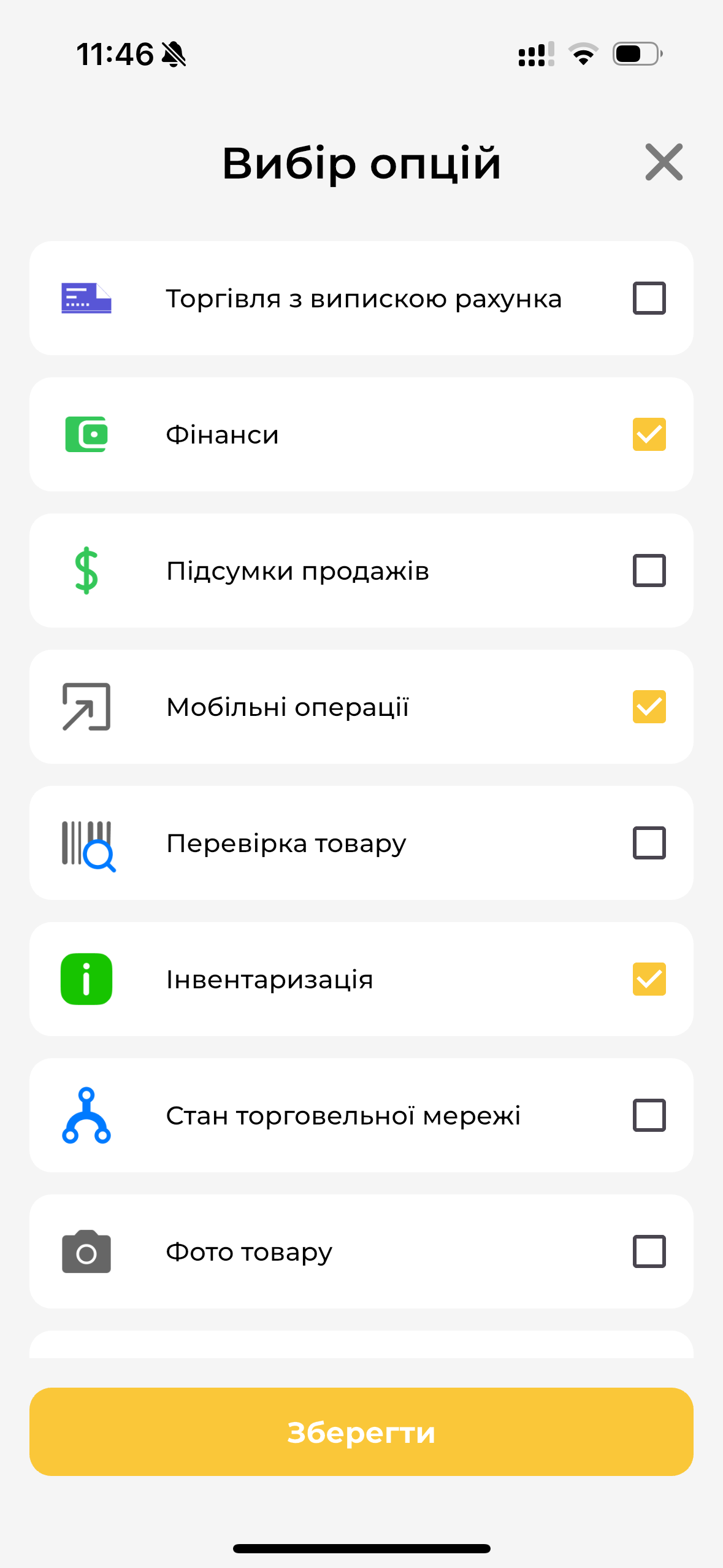
Configuring the set of actions on the main screen.
Access rights for each user
The administrator defines access to the mobile client in the Torgsoft user settings. After logging in, the employee sees only the permitted modes.
Seller
- sales and returns;
- client selection;
- price and balance check;
- changing sale conditions with permission.
Storekeeper
- receipt and invoice check;
- internal transfer;
- inventory and write-off;
- storage locations and product photos.
Owner or manager
- sales totals;
- retail network status;
- finances and balance with partners;
- analysis for a selected period.
Precision of rights is important. Viewing accounting quantities in the inventory record, purchase prices, client bonuses, changing selling prices, working time photo fixation, and other sensitive actions are configured separately.
Sales with PRRO in the mobile app
Mobile sales can generate a fiscal receipt via a PRRO registered and configured in Torgsoft for use by the mobile app.
After the sale the app shows the fiscal receipt, which can be sent to the buyer. For cashless payment, the cashier selects the payment method from the PRRO settings.
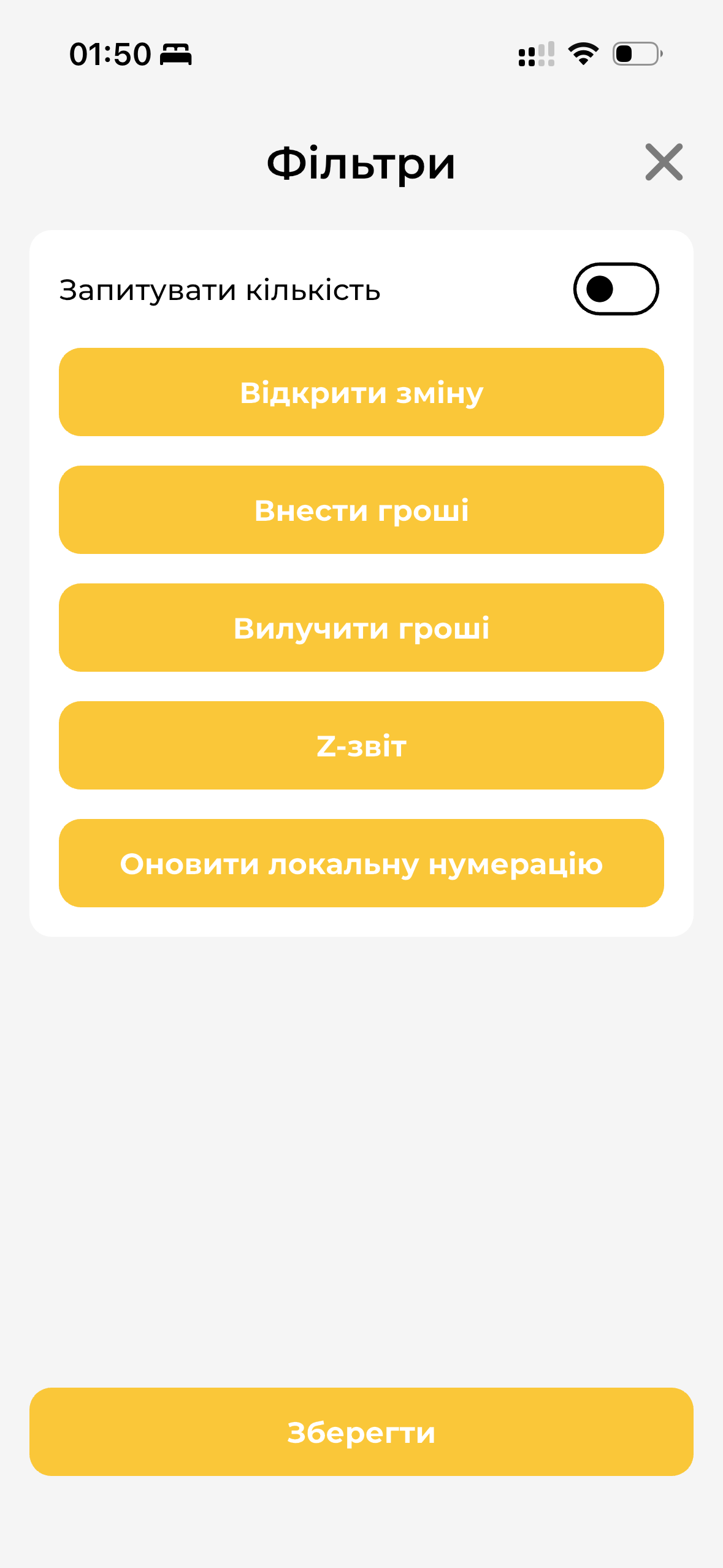
Opening a shift, cash operations, Z-report, and local numbering.
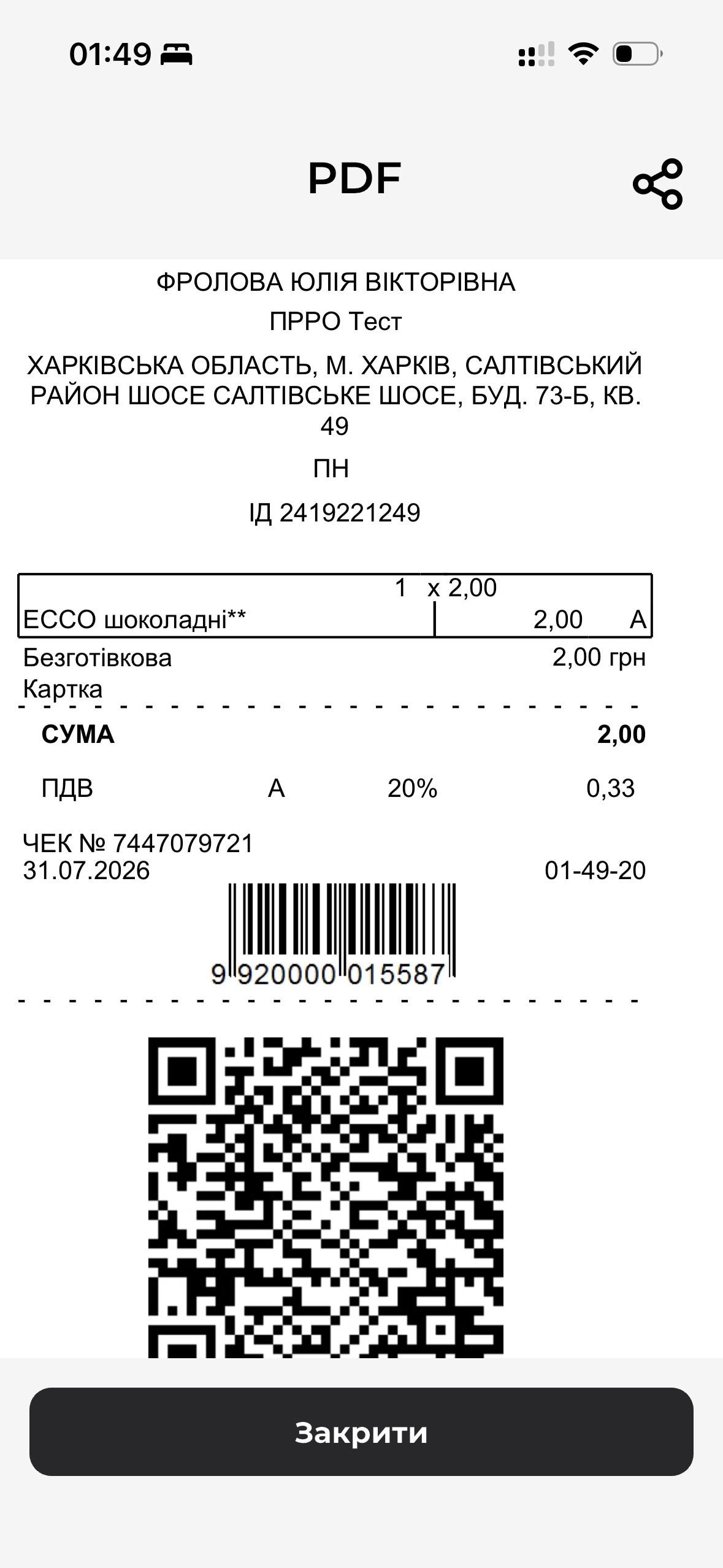
Viewing and sending the receipt to the buyer.
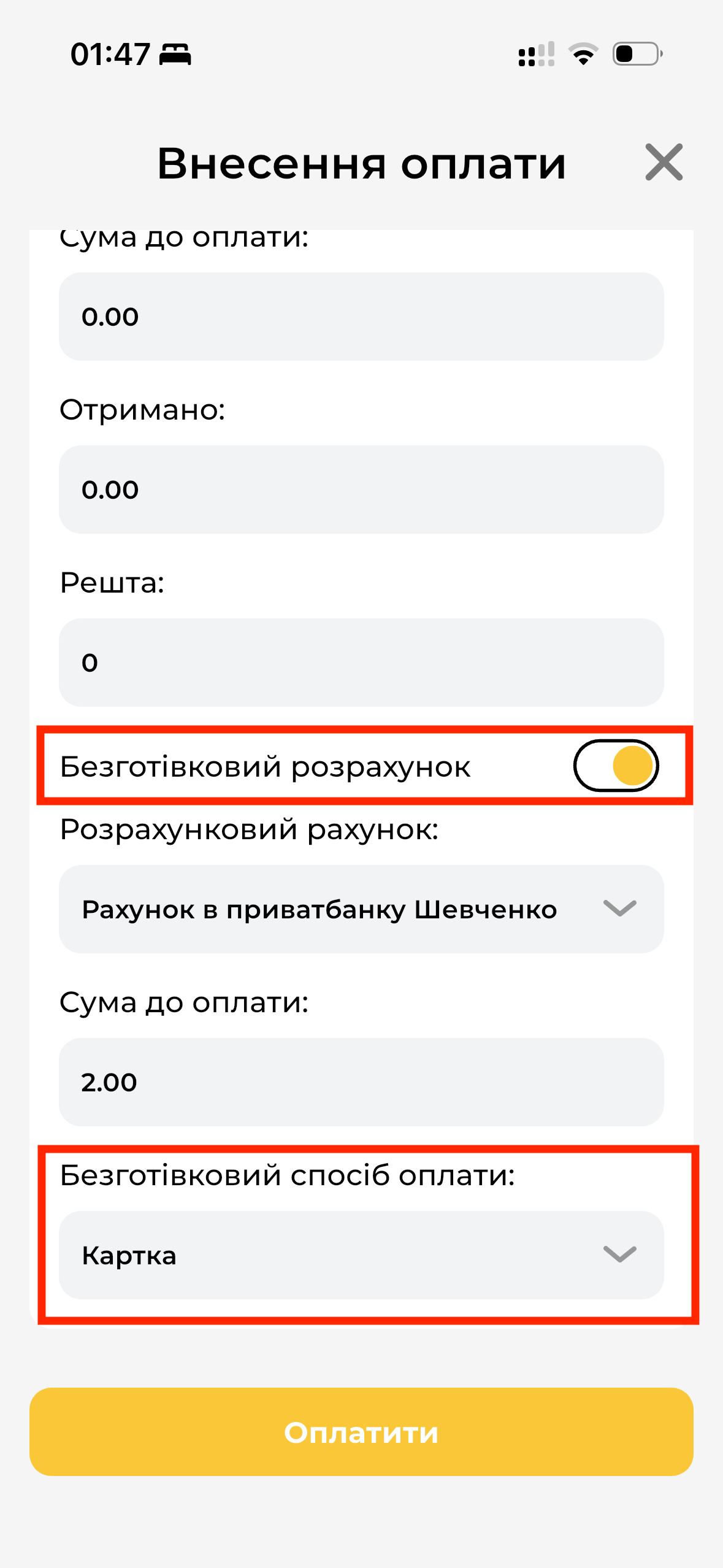
Selecting an account and payment method for the receipt.
What is needed for connection
The app works with the Torgsoft database via the application server. Launching requires a current version of the program, user access, and a configured network connection.
Default port: 6001 for the working database. Port 6002 is used for the Torgsoft demo database.
Price and connection conditions
- Program version: Torgsoft 2026.0.5 or newer.
- Licensing: the option is connected to each computer or mobile device regardless of the Torgsoft version.
- Compatibility: Smartphone or tablet with Android 7.0 or newer; iPhone or iPad with iOS 13 or newer.
- Demo version: 30 days to test operation on your own database.
Download the app to your phone

Frequently asked questions
Can I work outside the store?
Yes. The Torgsoft server must be turned on, connected to the internet, and accessible via a static IP address. To work in a local network, the smartphone needs access to this network.
Is the feature set the same for all employees?
The set is defined by the administrator. For each user, you can allow specific modes and individual actions within those modes.
Can a smartphone be used as a price checker?
Yes. A separate "Price checker" mode with its own settings is provided for this.
Can I accept card payments via smartphone NFC?
Yes. You need an NFC-enabled smartphone, the additional "Bank terminal connection" option, a banking app, and a monobank or PrivatBank terminal configured in the mobile app.
Can I print receipts?
Bluetooth printer configuration is available in the Android version. Receipt type and other parameters are set in the mobile app settings.
Does PRRO work in the mobile app?
Yes. You need to register the PRRO, configure it in Torgsoft for the mobile app, and select this PRRO as the receipt type.
What changed in version 3.0?
The app was migrated to Flutter. Version 3.0 retains the practical capabilities of previous versions and received an updated interface, adaptive display, and the ability to add required modes to the main screen and change their order.
Inventory accounting from a smartphone: mobile app features
The video shows connecting the app to the database and working with goods, sales, inventory, finances, reports, and personnel. The video was recorded with the previous interface, but the demonstrated practical capabilities are preserved in version 3.0. Current screens are shown on this page.
Try it yourself
Check how a smartphone becomes a mobile workplace for sales, warehouse, inventory, and reports right in your store. The Torgsoft demo version works for 30 days, data is stored on your server.
 Go back to the previous step