


Torgsoft supports a Romanian interface. To run a store in Romania, you also need to prepare product names, set up printed documents and check the checkout equipment. Before paying for a licence and integrations, test your own workflow for receiving, selling and returning goods.
The interface language alone does not confirm compliance with local fiscal requirements. Agree on the documents and refund procedure with the accountant who supports your business in Romania and with your checkout equipment supplier.
How to enable Romanian in Torgsoft
For a new workstation, use the official Torgsoft download and installation page. The program runs on Windows. Create a separate test database for checking. If you already use Torgsoft, back up your working database before making changes.
- Open Налаштування (Settings) → Параметри (Parameters) → Сервіс (Service) → Мова програми (Program language).
- In the Мова програми за замовчуванням (Default program language) field, select Romanian.
- Save the settings and restart the program.
- Check the menus and work screens on employees’ computers.
According to the language setup instructions, the selected default language is used on all computers. Coordinate the change with staff who work in the shared database.
If Romanian is not in the list, contact official technical support: provide the program version and request the appropriate localization and installation instructions. Romanian localization is not necessarily included in every installer version.
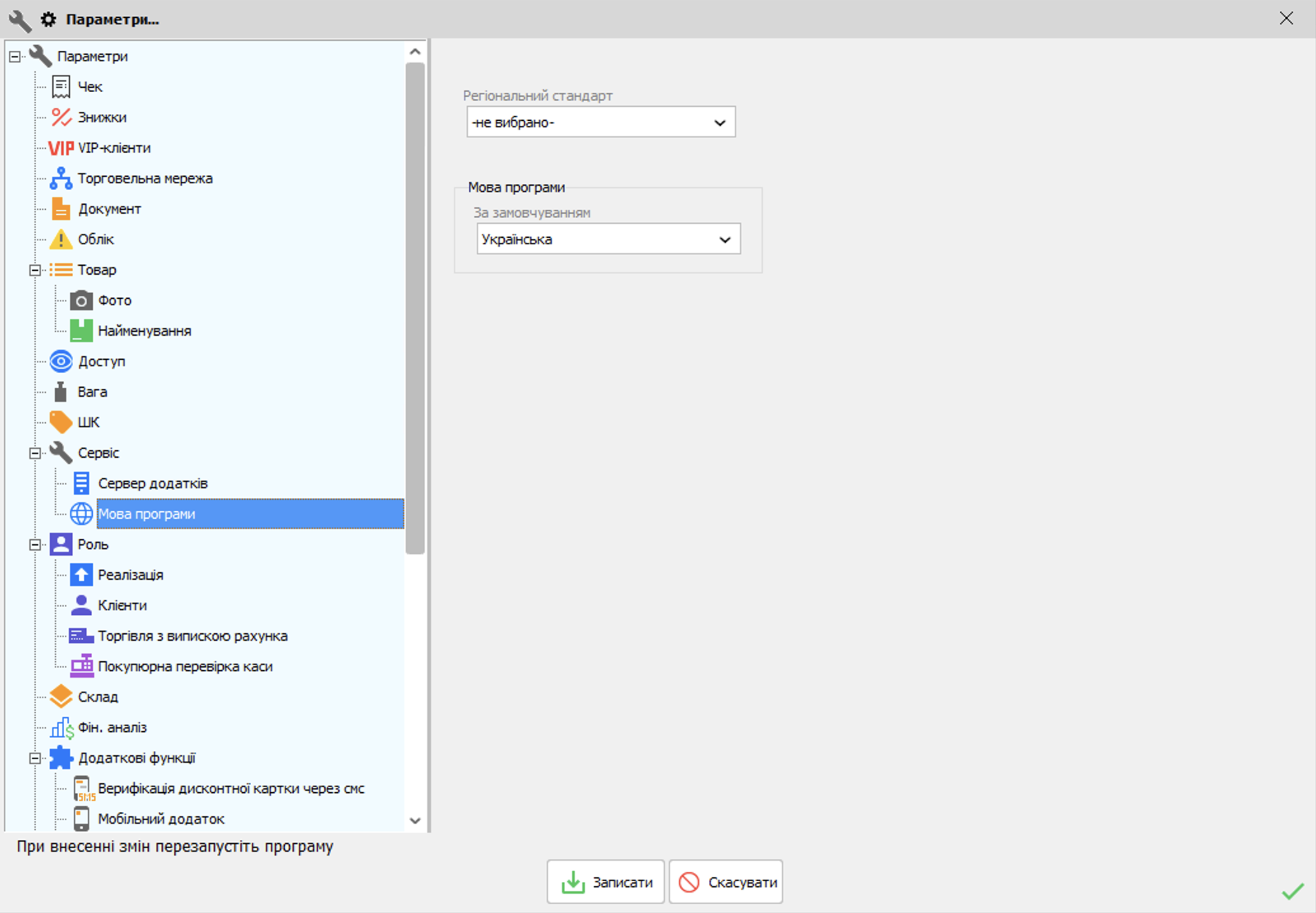
Interface language and regional standard: what to set separately
The language determines the interface text. The Регіональний стандарт (Regional standard) setting affects which menu items and actions are available. The instructions describe settings for Ukraine, Kazakhstan and Moldova. Check with support which setting to use for your configuration.
The “Romania” region for selecting a print template is set in a different mode. This is a separate print setting that can be linked to a customer, invoice and company.
How to prepare Romanian product details and documents
Changing the interface language does not translate existing product names in the database or your custom templates. Translate the product catalogue and static document headings separately. For testing, choose several representative products with names of different lengths.
- Make a copy of the required invoice or delivery note template.
- In the template editor, translate column headings, labels and other static text while keeping the data variables intact.
- Open Документ (Document) → Торгівля з випискою рахунка (Trade with invoice) → Друк (Print) → Налаштування друку та відправки рахунка (Invoice print and sending settings) → Налаштування шаблонів (Template settings).
- Create settings for the “Romania” region, specify the company if needed, and select the Romanian template file.
- Prepare a default template with the region and company fields left blank, then check a document without a region specified.
The template selection process is described in the regional print settings instructions. Check the preview using your company’s data: names, details, quantities, prices and the characters ă, â, î, ș, ț. Agree on the details shown and the document language with a local accountant.
Set up the document currency and payment currency with support. Check how they appear in sales, returns and reports.
Test receiving, selling and returning goods: quantities and money
Run this example in a separate test database. Opening stock is zero. Receive 20 units of one product, sell three, then process a return of one sold unit and refund the customer. In this example, the returned item is fit for resale and goes back into stock.
- Stock: 20 − 3 + 1 = 18 units.
- At a price of 50 RON with no discounts, the amount received is: 3 × 50 = 150 RON.
- The customer receives a refund of 50 RON. Money received after the return: 150 − 50 = 100 RON.
100 RON is the amount of money received after the refund. For this illustrative profit calculation, assume a cost of 30 RON per unit and no taxes, fees or additional expenses. After the return, two units remain sold: their cost is 60 RON, and gross profit is 100 − 60 = 40 RON. Gross margin is gross profit as a share of revenue: 40 ÷ 100 × 100% = 40%. Net profit is calculated after other expenses and taxes are accounted for.
Reconcile the stock against the warehouse balance and a test stocktake.
Datecs in Romania: check the return limitation
The fiscal register integration instructions include the entry “Datecs România FP-700, FP, FMP, WP, DP”. The integration requires a paid add-on. Confirm the specific model, driver, firmware and COM or TCP/IP connection with the equipment supplier and Torgsoft support. For the Romanian Datecs integration, the customer’s tax identification number is transmitted to the fiscal receipt if it is recorded in the customer’s details. For the training test, agree with the supplier on a mode that does not perform real fiscal transactions.
For the Romanian integration listed, a fiscal return receipt is not printed. In mixed mode, a non-fiscal return receipt is printed. Before purchasing, confirm the complete process for returning goods, refunding money and preparing the required documents with a local specialist. Support for the Ukrainian software fiscal registrar (PRRO) also does not confirm that the configuration is suitable for Romania.
What to check before paying and opening
| Task | Test | Pass criteria | Owner |
| Language and products | Open the menu and product cards | Staff understand the commands; names and diacritics display correctly | Owner, cashier |
| Documents | Preview and print an invoice and delivery note | The template, company details and language are approved | Accountant |
| Stock | Run the example and a stocktake | The test leaves 18 units in stock | Owner |
| Payment and returns | Check the money and return documentation | Amounts match; the documentation process is approved | Cashier, accountant |
| Equipment | Check the specific fiscal register | Sales work; the return procedure is defined | Equipment supplier |
Torgsoft for store inventory and management accounting
Torgsoft links receiving, sales, returns, stock and management reports. In day-to-day work, the owner can reconcile the movement of goods and money, while the cashier processes transactions in the shared database.
A stocktake compares the actual quantity with the recorded quantity. Closing the stocktake statement can change stock through receiving surplus goods and writing off shortages, so train staff in a test database. Torgsoft handles inventory and management accounting; arrange full accounting and reporting with an accountant.
 Go back to the previous step