



To add warehouse items in Torgsoft, open the required sale—the sales document—or the customer invoice. Check the customer and document number, open the warehouse item selection, and add the required items in the ordered quantities.
“Обраний товар” (Selected item) is a temporary list of items to add to a document. Creating this list does not mean the goods have been dispatched. After transferring the items, the salesperson or manager must check the document lines before completing the sale or creating a delivery note—the document used to record the issue of goods from the warehouse.
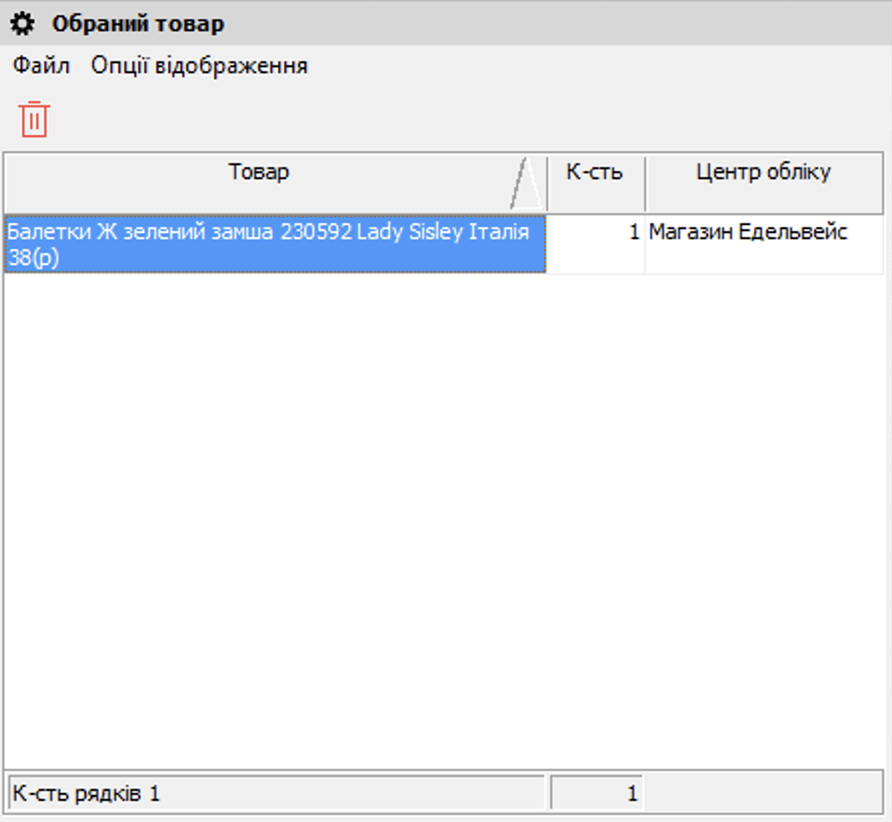
An example list of products selected for adding to a document.
Open item selection from the required document
For a sale, open the “Реалізація” (Sale) form:
- Go to “Документ → Реалізація” (Document → Sale).
- Check the customer and the required document.
- Use the “Вибір товару зі складу” (Select item from warehouse) action.
To add items to a customer invoice:
- Go to “Документ → Торгівля з випискою рахунка” (Document → Trade with invoice issuance).
- Select the required invoice and check the customer and document number.
- On the “Товар рахунка” (Invoice items) tab, click “Вибрати товар зі складу” (Select item from warehouse).
If you are working with several orders, check the document number each time before selecting items. This helps ensure the list is added to the order for the correct customer.
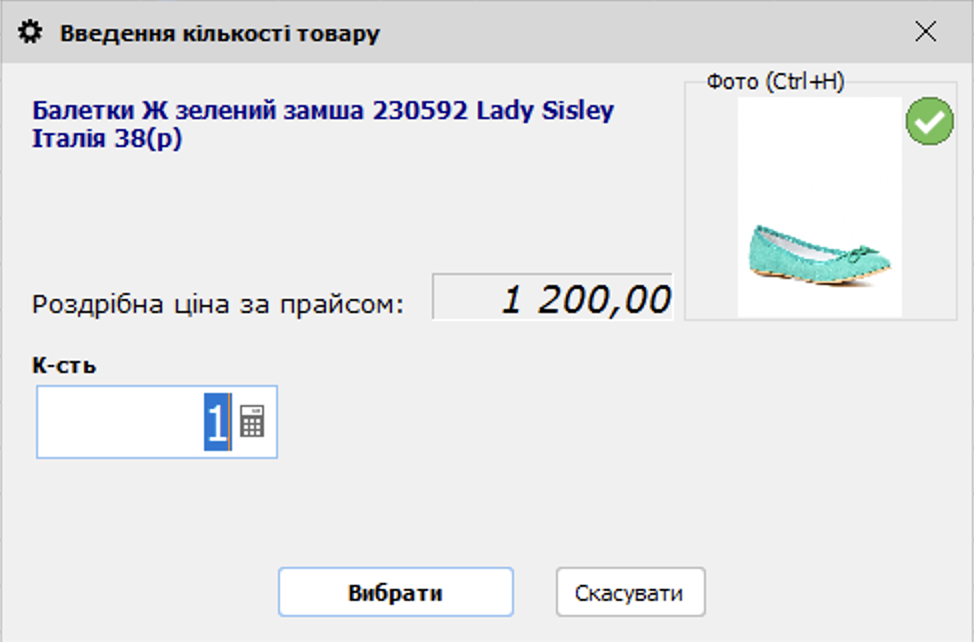
Before adding a product, the seller enters the required quantity.
Check the warehouse, item variant, and stock balance
An accounting center is a store or warehouse in Torgsoft for which inventory is tracked. In the “Стан складу” (Warehouse status) form, you can view the quantity, unit of measure, article number—the item code—size, color, and warehouse. The “Стан на дату” (Status as of date) filter shows the quantity on the selected date.
Before adding items, the salesperson or manager must match each order item to the corresponding row in the program:
- Check the article number, size, and color, especially when items have similar names.
- Check the unit of measure. If the customer ordered boxes, pieces, or meters, make sure the ordered quantity matches the unit in which the item is tracked in the program.
- Make sure you selected the store or warehouse from which you plan to issue the item.
- Compare the ordered quantity with the current stock balance. For a sale today, use the current quantity data.
If an item appears in the inventory records but the employee cannot find it in the warehouse, first find out why the quantities differ. Before recording the issue, agree with the customer on a reduced quantity or a replacement item if necessary.
Set item quantities
One unit of an item
- Select the required item.
- Press Ctrl + 1.
- Make sure the item appears in the “Обраний товар” (Selected item) window with a quantity of 1.
Required quantity of one item
- Select the required item.
- Press Ctrl + Q.
- Enter the quantity and confirm adding the item.
- Check the item and quantity in the “Обраний товар” (Selected item) window.
Several items at once
- Press Ctrl + X to enable multi-row selection, which lets you select several item rows at once.
- Select the required items.
- Press Ctrl + Q to open the quantity entry method options.
- Select a mode: “По одній одиниці” (One unit each), “В кількості на складі” (Warehouse quantity), or “Задати кількість” (Set quantity).
- For “Задати кількість” (Set quantity), enter the required value.
- Click “Додати” (Add).
- Check the quantity for each item in the “Обраний товар” (Selected item) window. If needed, edit it in the “Кількість” (Quantity) column.
In “Задати кількість” (Set quantity) mode, the entered value applies to every selected item. Use it when the customer needs the same quantity of each item. If the quantities differ, set them separately and check each row.
Select “В кількості на складі” (Warehouse quantity) when you need to add the entire stock balance for each selected item. For an order with specified quantities, first note how many units of each item the customer needs, then enter those values in the corresponding rows.
When the list for a sale is ready, the salesperson must check the items and quantities in the “Обраний товар” (Selected item) window, then click “Вибрати” (Select) at the bottom of the form. The items with the specified quantities will then appear in the sale.
Example: adding 5, 12, and 2 units of different items
Illustrative example. The customer ordered 5 pens, 12 notebooks, and 2 folders. All three items are tracked by the piece and are available in sufficient quantities at the required warehouse.
- Open the sale and select items from the warehouse.
- Select the pens, press Ctrl + Q, enter 5, and confirm adding the item.
- Add 12 notebooks and 2 folders in the same way.
- In the “Обраний товар” (Selected item) window, check the three item names and the quantity in each row: 5, 12, and 2.
- Click “Вибрати” (Select) at the bottom of the form to transfer the list to the sale.
- Before payment, compare the sale lines with the order again.
The total quantity in this example is 19 units: 5 + 12 + 2 = 19. This total can help reveal a discrepancy in the overall quantity. Check each row separately as well: an incorrect quantity split between items can still produce the same total.
Check the document before the sale or issue
After transferring the items, the salesperson must check the sale against the order: all ordered items have been added, there are no extra items, and the quantities and prices match what was agreed with the customer. To correct a quantity in the sale, use the “Змінити запис введеного товару” (Edit entered item record) action.
If you are preparing an invoice, the manager must check the “Товар рахунка” (Invoice items) tab before handing the order to the employee who will pick the goods for issue.
If a manager adds an item to an invoice and “Строгий гарантійний облік” (Strict warranty tracking)—tracking individual units by serial number—is enabled for that item, the manager must enter the serial number of the specific unit that will be issued to the customer:
- Click “Серійні номери товару” (Item serial numbers).
- Click “Додати” (Add) and enter the serial number.
The warehouse keeper can use the “Перевірити товари рахунка” (Check invoice items) action and scan barcodes or enter article numbers to match the picked goods to the invoice.
Writing off goods from the warehouse against an invoice is linked to creating a delivery note. The program displays a confirmation prompt before this action. Check the items and their quantities in the document before confirming.
In the static mode of “Стан складу” (Warehouse status), the quantity is recalculated using a separate action. If you need to update the recorded stock balance after receiving, selling, or moving items, the person responsible for inventory must do the following:
- Use the “Перерахувати кількість” (Recalculate quantity) action.
- Compare the quantity in the program with the actual quantity available.
If the discrepancy remains, the person responsible for inventory must find out its cause:
- Select the item and open “Рух товару → Картка складського обліку” (Item movement → Warehouse accounting card).
- Compare receipts, sales, returns, and internal transfers at the current warehouse against the documents for actual receipt and issue.
- Find out whether any transactions were omitted or entered incorrectly. If you find one, identify the relevant document and quantity discrepancy before changing the inventory records.
Start with the required sale or invoice: check the customer and document number, then open warehouse item selection. After adding the items, compare every row with the order so the document contains the agreed items, quantities, and prices before payment or issue.


 Go back to the previous step