


Torgsoft-Ultra suits a store that needs several accounting centers, stock transfers, supplier orders, wholesale sales, bonuses, and advanced analytics. Before purchasing, determine the number of computers, where employees work, and which additional options you need: these affect the configuration and the total launch cost.
To use Ultra on a local network, you need a separate license for each computer. If stores, the warehouse, and the manager need to work simultaneously over the internet with a single server database, consider the Terminal version or Torgsoft-Online. Before launch, transfer a trial portion of your data and check the full product flow, from receipt through sale and return to the financial report.
Check PRRO and other additional options separately in the order.
What Torgsoft-Ultra includes and which options are billed separately
According to the official license comparison, the basic Ultra includes receiving, sales, returns, write-offs, stocktaking, revaluation, multiple accounting centers, transfers, assembly, and supplier orders. It also includes wholesale trade, invoice issuance, a customer database, discounts, a bonus system, VIP customer management—a separate customer category in the program—and advanced product analysis. The Ultra description confirms management accounting for income, expenses, cash operations, debts, and settlements, as well as employee permission settings.
Support for an additional function means it can be connected. The following are also paid and configured separately: a software-based settlement transaction registrar (PRRO), integration with a bank payment terminal, bulk messaging, staff payroll and incentives, synchronization with an online store, integrations with delivery services, and other compatible options. The customer database and bonuses are included in basic Ultra, while advanced customer relationship management tools, including customer profiles and Binotel calls, have separate terms. For each function you need, ask for its name, validity period, and number of licenses to be specified in the offer.
The commercial terms page offers perpetual licenses and one-year rentals. A perpetual license lets you use the purchased version without a time limit; a rental or subscription is valid for the paid period. Check the cost of workstations, options, version upgrades, updates, and support against the specific invoice and plan terms. The standard implementation package includes two hours of remote support for 30 days; the amount may vary for some configurations. Budget separately for additional service.
How to choose between Start, Ultra, Terminal, and Online
First, list the workstations: who makes sales, who receives goods, and who works with inventory and reports. For a local installation, prepare computers running Windows, the operating system specified in the official installation guide. For each workstation, note its location and whether simultaneous access is needed. Then compare this list with the license formats.
| Format | Suitable tasks | What to check before ordering |
|---|---|---|
| Torgsoft-Start | One accounting center; basic retail sales, inventory, cash register, customers, and discounts. | Whether the basic functions and list of compatible options are sufficient. Each computer on a local network requires a separate license. |
| Torgsoft-Ultra | Several accounting centers, purchasing, transfers, wholesale, bonuses, and advanced analytics in a local infrastructure. | Number of licensed computers, shared work on the local network, and required paid options. |
| Torgsoft-Terminal | Simultaneous work by remote stores, the warehouse, or the office over the internet with a single database on a server. | The server, number of client connections, terms for expanding them, and equipment operation at remote locations. |
| Torgsoft-Online | Remote work by subscription, with the program and database hosted on a Torgsoft server. | Plan contents, number of users, required options, equipment compatibility, and terms of data access. |
These differences are shown in the license comparison. For example, two cash registers in one store and a warehouse on the same local network should be assessed by the number of computers and required functions. If a product specialist works from another city, you will also need a remote work solution. Adding another Ultra license by itself does not provide that access.
How to check inventory operations using store workflows
The scenarios below are a recommended check plan. Run them in a demo or prepared training database using your own products. The vendor offers a 30-day demo version; during evaluation, record which additional options are activated so you can correctly determine the scope of the future purchase.
Purchasing and receiving goods
- The product specialist selects several items that need replenishing and creates a supplier order. For the trial, include products with different sizes or colors if the store carries that assortment.
- When receiving goods, the employee checks the actual items against the accompanying documents, enters the quantity, purchase and selling prices, and checks the accounting center.
- After recording the receipt, the employee opens «Склад → Стан складу» (Inventory → Stock status), checks the quantity, and scans the product label. The scan should find the exact item, size, and color.
- The owner checks settlements with the supplier and separately reconciles the payment, so that the receipt of goods and movement of money reflect what actually happened.
Acceptance criterion: the quantity matches what was actually received, the goods are at the correct warehouse, prices have been checked, and the amount owed to the supplier matches the documents and payments. The ability to view quantities, cost, prices, and product movement is described in the «Стан складу» (Stock status) help page.
Transfers between the warehouse and store
- The employee in charge checks the stock at the accounting center sending the goods and records a transfer to the required store.
- The store employee checks the received items and quantities against the transfer document.
- The product specialist reviews the balances at both accounting centers and the movement of the selected product to verify the transaction result.
Illustrative example: the warehouse had 20 units and the store had 3. After transferring 7 units, the warehouse should show 13, the store 10, and the total should remain 23. If the result differs, check the accounting centers, item, and quantity in the document.
Stocktaking and discrepancies
- Choose the area to count and the time at which you will compare the actual balance with the recorded balance. Organize the work so sales and transfers during the count can be accounted for.
- Count the goods and enter the actual quantity in the stocktaking sheet. In «Стан складу» (Stock status), you can add selected products to such a sheet.
- Before finalizing discrepancies, check product movement: receipts, sales, returns, and internal transfers.
- Count disputed items again and agree on the result with the person in charge.
Acceptance criterion: every significant discrepancy has been checked, and the final balance matches the physical stock. To find errors, use product movement, the stock card, and filters for zero and negative balances.
How to check retail, wholesale, and returns
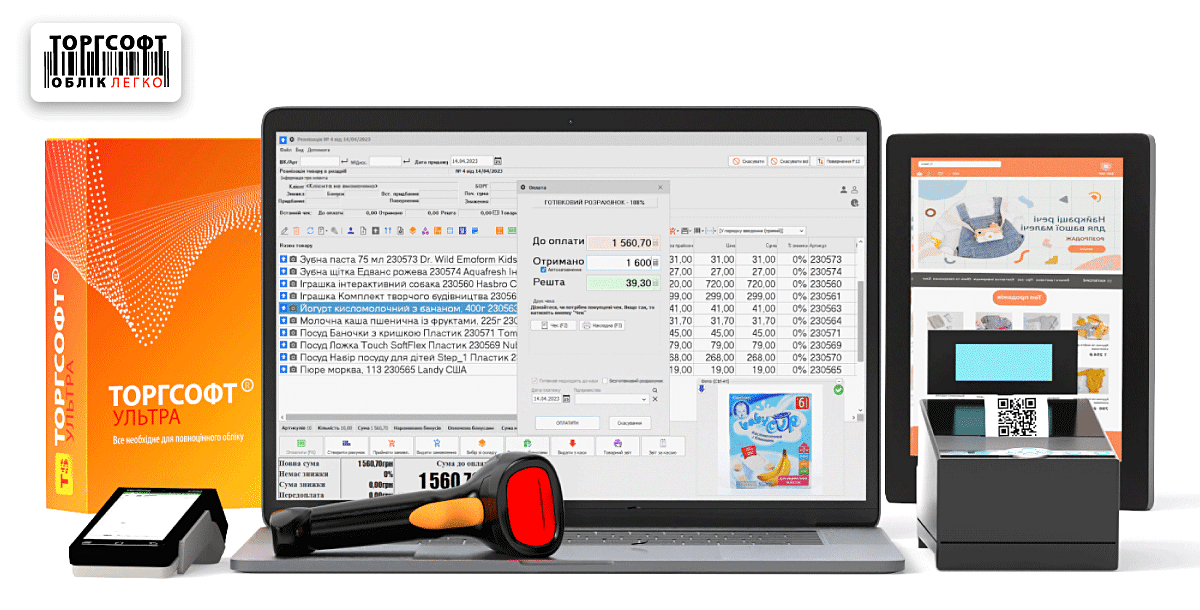
In the «Реалізація» (Sales) form, a salesperson can add goods by scanning a barcode or searching, select a customer, check the quantity, and process payment. For the wholesale trade type, the wholesale price is displayed when adding a product. Availability of some actions depends on settings and user permissions, as described in the Sales help page.
- Retail sale. The salesperson scans the product, checks the name, quantity, price, and discount, then selects the actual payment method. Check that the stock decreases and the money is recorded in the correct cash register or account in the system.
- Wholesale sale. The manager selects the buyer, checks wholesale prices, and issues an invoice and processes the shipment according to the agreed process. After partial or full payment, reconcile the remaining debt. The special «Політика гуртових цін» (Wholesale price policy) option is paid separately.
- Return. The employee processes a return for a trial sale and checks the product quantity, refund amount, and refund method. If the sale affected the customer’s discounts or bonuses, separately check the result in their card.
- Two cash registers in use. On two licensed computers, check sales of different products and successive sales of the same item. Reconcile the documents, stock balances, and totals for each cash register.
Acceptance criterion: sales and returns correctly change inventory and financial balances, and employees can perform these operations with their assigned permissions. Reconcile a non-cash payment recorded in the accounts with the actual payment: selecting an account in the payment form does not by itself confirm that the money was received from the bank.
How to check customer cards, discounts, and bonuses
Before configuring the loyalty program, the owner should define its rules: who receives a discount, which products are included, how bonuses are earned and used, and what happens after a return. Then check these rules using trial purchases.
- Create a training customer card and check that it can be found by scanning the card and searching by phone number.
- Process a purchase of a regular product and a discounted product. Compare the expected amount with the program’s calculation.
- Check bonus accrual and use, then process a return from that purchase. Record the expected and actual result for each transaction.
- Repeat the scenario using a salesperson’s account to check access to manual discounts and changes to customer data.
The Sales help page states that a manual document discount has the highest priority. Therefore, check how discounts combine before launching a promotion, and limit permission to set them manually according to each employee’s duties. Bulk messaging and bonuses with a limited validity period require separate paid options according to the list of capabilities.
How to reconcile money and use analytics
For daily control, assign an employee to reconcile the cash register, non-cash payments, returns, and other expenses. The daily report includes sales totals by payment method, returns, cash register balances, and other financial transactions. The program also supports checking cash by denomination; these capabilities are listed in the description of sales and cash transactions.
- Count the actual cash and compare it with the recorded balance. Check discrepancies against sales, returns, deposits, withdrawals, and expenses.
- Reconcile non-cash sales against bank data. The «Банківські виписки» (Bank statements) option is listed as a separate paid annual option; whether data can be automatically retrieved from your particular bank requires separate confirmation.
- To transfer proceeds from the store cash register to the central cash register, check the «Здати виручку» (Hand over proceeds) transaction: according to the help page, it keeps the money in the system while moving it to another cash register.
- Check customer and supplier debts against documents and payments. For a disputed amount, reconstruct the sequence of transactions before correcting it.
Illustrative cash check: the cash register held UAH 1,000 at the start of the day; cash sales were UAH 6,000, returns UAH 400, expenses UAH 300, and UAH 5,000 was transferred to the central cash register. Expected balance: 1,000 + 6,000 − 400 − 300 − 5,000 = 1,300 UAH. Do not include non-cash sales in this calculation.
To check analytics, select the same period and accounting centers in all reports being compared. Ultra includes ABC analysis, which groups products by their contribution to a selected metric, and XYZ analysis, which helps assess demand stability. Before making a purchasing decision, check the report settings, returns, cost, and product availability during the period: low sales for an item that was not on the shelf require a separate explanation.
How to configure employee permissions
Create separate accounts and check permissions under each one. The Ultra description provides for restricting access to information and functions by role. Agree on the practical allocation based on the team’s actual duties.
- For a salesperson, enable the necessary sales and returns; check access to cost, price changes, and manual discounts separately.
- For a product specialist, grant the necessary receiving, transfer, and stocktaking operations, and check the limits on access to financial data.
- For the owner or responsible administrator, retain management of roles and settings, and the ability to review reports.
Acceptance criterion: each employee can perform their work and is denied access when trying to perform a prohibited action. Switching users should be part of the check, since seeing a required button under the owner’s account does not confirm that the salesperson’s role is configured correctly.
What to check before connecting a PRRO and bank terminal
Stores in Ukraine are subject to Ukrainian law. Before configuring the cash register, confirm with your accountant whether your business needs a settlement transaction registrar, which exceptions and special conditions apply to your sales, and how payments and returns must be processed.
To connect the PRRO technically, activate the relevant option for the required number of workstations and configure the cashier key, business unit, taxes, and payment methods. According to the PRRO setup instructions, test receipts are non-fiscal even if they have a number. Before switching to working mode, close the shift: test mode can only be disabled when the PRRO shift is closed. After switching, check the registrar status, details, product data, and receipt transmission result. Product tax settings should be checked separately from the registrar’s general list of taxes.
To integrate a bank terminal, agree on the model’s compatibility and settings, then check amount transfer, successful payment, a declined payment, and a refund. According to the Sales help page, the terminal connection works when the terminal is connected and configured accordingly. Use management reports to monitor the business; agree separately with your accountant on the scope of tax and accounting records and the required documents.
How to transfer data and prepare the store for launch
- Assign responsibilities. Decide who prepares reference data, counts stock, transfers debts, configures permissions, and accepts the result. Schedule the launch after assessing the volume of data and integrations.
- Prepare products and customers. Remove duplicates, check barcodes, units of measure, sizes, colors, and prices. Save the original data export separately.
- Run a trial import. The official description provides for transferring products and customers through Excel in .xls format, with cells formatted as text. Put the name, color, material, and other attributes in their corresponding fields. First check a small sample, including barcodes with leading zeros.
- Record the starting position. Set the transition time, count stock, and separately reconcile money and debts. Make sure entering existing goods does not create duplicate debts to suppliers.
- Check backup procedures. Configure backups and store them on a separate device or in an agreed cloud storage service. Ask a responsible specialist to check restoring a copy in a separate environment.
- Run a trial operation. Process receiving, a transfer, retail and wholesale sales, a return, a bonus transaction, and cash reconciliation. Employees should complete these scenarios with their own permissions.
If the store already uses Start, upgrading to Ultra involves changing the license for the existing database while retaining products, customers, documents, balances, and settings. Create a backup before activation. Check the upgrade cost in the current offer for each license; after activation, reconcile the control balances and enable the required new functions for employees.
What results are required before launching accounting
Approve the launch when the employees responsible have confirmed these results:
- Initial product records, stock balances, funds, and debts have been reconciled, and duplicates and import errors have been removed.
- Receipts, transfers, sales, and returns produce the expected changes in the accounts.
- Discounts and bonuses follow the agreed rules, and employee permissions have been checked.
- All required paid options are listed in the order and checked in the selected configuration.
- Backups are being created, restoration has been checked, and employees know whom to notify about an error.
Record unresolved issues, those responsible, and deadlines for correction. At the end of the first working shift, reconcile inventory transactions, the cash register, and non-cash payments to catch discrepancies before more documents accumulate.
 Go back to the previous step