


The customer completes the purchase, with staff help when needed
A store can set aside a dedicated area where customers scan items themselves and pay by bank card. Torgsoft provides a self-checkout mode for this purpose.
Before launch, plan not only where to place the equipment but also how staff will be involved: who will help customers, verify age, or perform a staff-only action. An employee must be available even when customers complete their baskets on their own.
How a typical purchase works
Scanning items
The customer scans a barcode, and the item is added to the purchase. The screen displays the item list and a summary of the basket. When setting up the checkout, use clear item names and show the amount due.
Customer card
After the customer scans a discount card, the checkout displays customer information and applies the discount. Before launch, test this scenario with your store’s card to make sure the configured terms work as expected.
Payment and receipt
When the customer proceeds to payment, the system sends the amount to the connected bank terminal. The customer pays by card, after which a receipt is printed. The terminal and fiscal solution must be configured in advance.
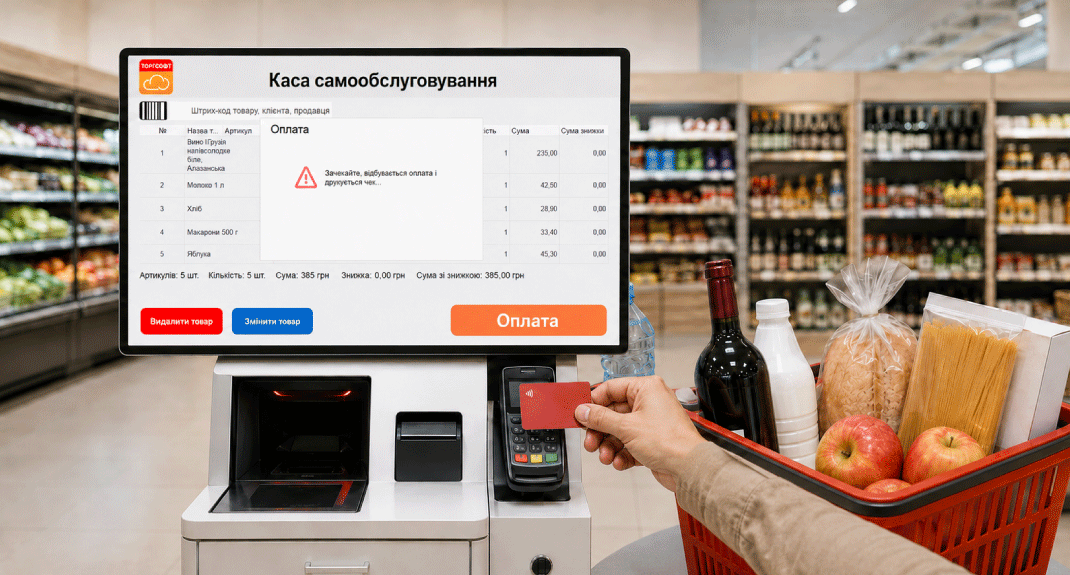
When staff are needed
When an excise product is scanned, the checkout asks for the excise stamp code. It can be scanned or entered manually using the virtual keyboard. If your assortment includes such products, test both input methods before opening the checkout to customers.
If the basket contains an item configured to require age verification, the system asks for an employee barcode. The employee checks the customer’s age and confirms the operation with their barcode, after which the payment button must be pressed again to complete the transaction.
Agree on how to provide help
Assign an employee to be responsible and explain to customers how to call them if verification or help with scanning is needed.
What to configure for customers and staff
On first launch, an initial synchronization is required so the checkout can recognize employee barcodes. After that, staff settings are available after scanning an employee barcode. They let you choose which columns appear in the item list and which information appears in the summary, and allow customers to change quantities and remove items or restrict these actions.
For example, if you reserve these actions for staff, agree on who will help correct a basket. If you let customers edit it themselves, include this scenario in your pre-launch checks.
You can choose an image for the welcome screen. Prepare it so customers understand the purpose of the checkout and see a short prompt for starting their purchase.
How to prepare the checkout area
You will need a computer with a screen, a barcode scanner, a bank terminal, and a configured PRRO or fiscal register for printing receipts. The checkout window adapts to the screen settings. Check existing equipment for compatibility before connecting it.
Make a list of equipment models, identify the items customers can check out themselves, and note the cases that require staff. Then run a test purchase: scan items, use a customer card, correct the basket according to the selected permissions, pay, and receive a receipt.
A checkout is ready when its settings are agreed, its equipment is tested, and there is a clear process for helping customers.
Discuss setup for your store
Send the Orders Department a list of your equipment and describe the workflows you need. Contact them on Telegram @torgsoft_sale or by phone at +38 (067) 558 37 84.
 Go back to the previous step