



To recalculate prices using an exchange rate in Torgsoft, determine the calculation basis: the purchase price with a markup or a fixed selling price in foreign currency. Before making a bulk change, back up the database, select the products for the required store and group, then compare the current and calculated prices.
The store owner sets the exchange rate and pricing rules, the responsible employee performs the revaluation, and the sales assistant checks prices at the checkout and on labels. Press F5 to refresh the calculation. To set new prices, you must perform a separate action; if the revaluation was created as a document, apply it.
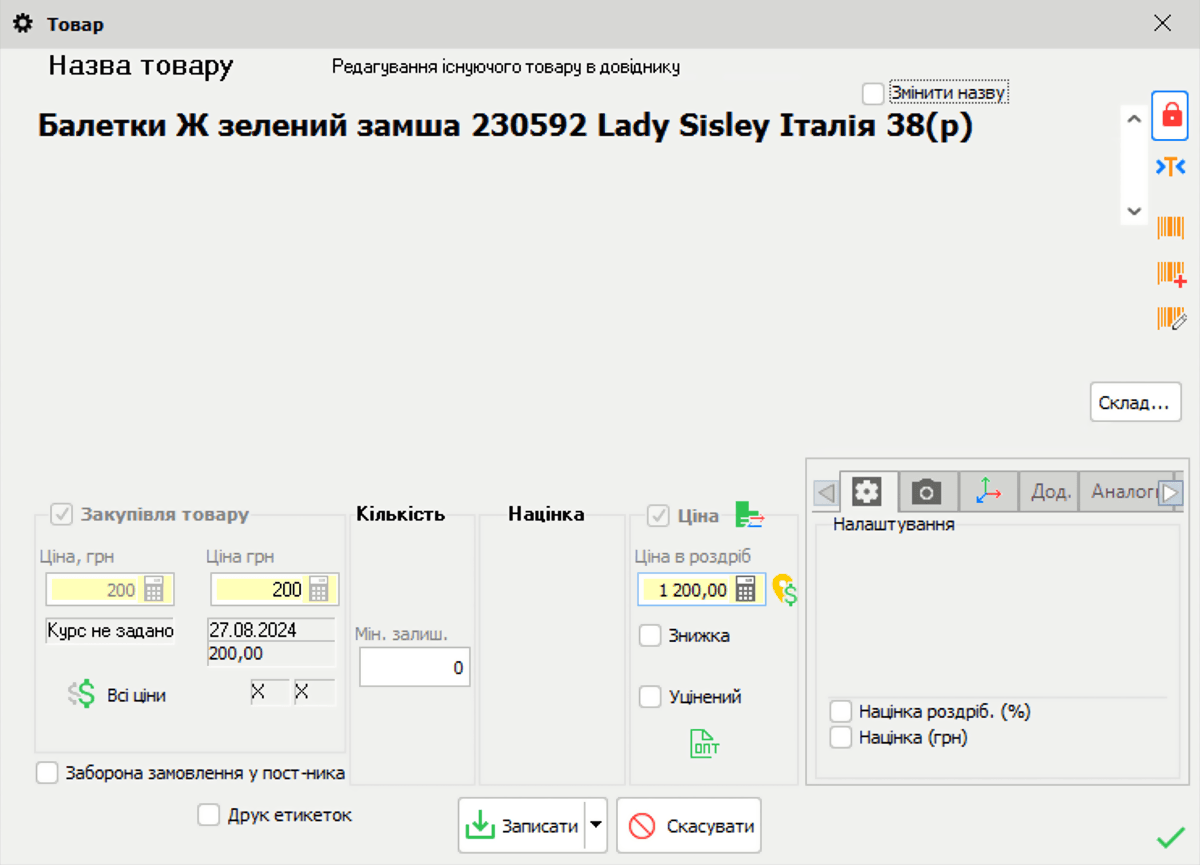
Example product card: the prices shown are for illustration.
Prepare a backup and a list of products
- Back up the database. Run “Файл → Зберегти базу даних” (File → Save database). Choose a location where the responsible employee can find the copy independently of the work computer.
- Make sure the records can be restored from the copy. Check the creation time, that the file is present, and its size. Ask the administrator to perform a test restore in a separate test environment and open several recent documents. This will show whether the copy can be used for recovery.
- Identify the store or warehouse. In Torgsoft, an accounting center is the store or warehouse for which product records are maintained. Note the required accounting center so the revaluation is applied there.
- Select the products. Start with one supplier or product type. Choose several items to verify: a regular product, a discounted product, and a product with non-standard rounding.
- Record the initial values. For the selected items, record the SKU, current retail and wholesale prices, currency, and the basis for the upcoming calculation. This information will help identify the reasons for discrepancies before changes are applied.
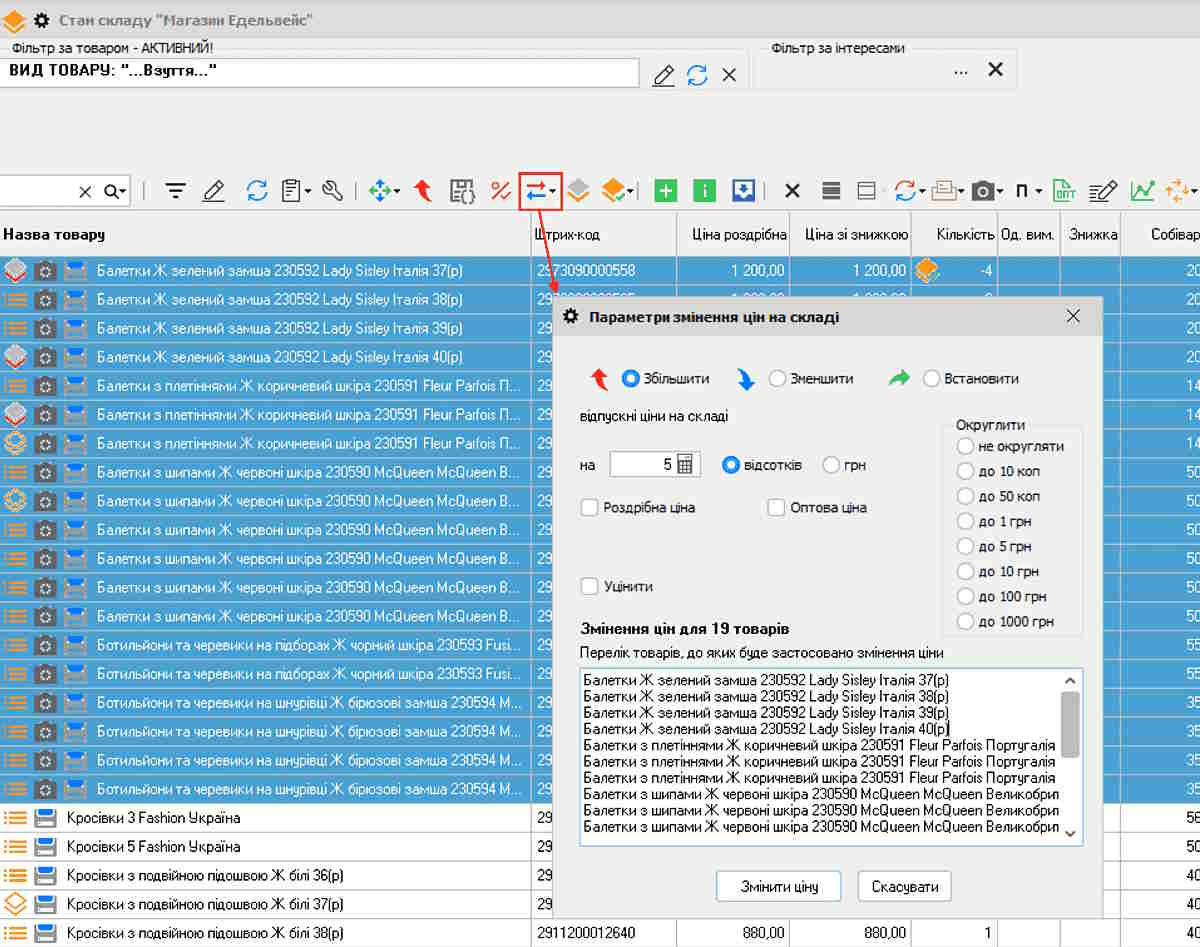
Example of bulk price changes: check the product list before applying them.
Choose the price calculation basis
The price calculation mode by markup and exchange rate provides two methods:
- Based on purchase price. The program uses the purchase price and markup—the percentage added to it to determine the selling price.
- Based on equivalent price. An equivalent price is a fixed selling price in foreign currency. It may differ from the purchase price.
Before choosing a method, check what the currency amount in the product card represents: the purchase price or an agreed selling price.
Illustrative example. A store set the equivalent selling price at 20 euros. At an illustrative rate of UAH 45 per euro, the price before other settings are applied is 20 × 45 = UAH 900. If 20 euros is the purchase price and the store adds a 30% markup, the calculation is 20 × 45 × 1.30 = UAH 1,170. Check the actual price with value added tax (VAT), discounts, and rounding settings taken into account.
If a product was received several times, the employee responsible for inventory must determine which purchase price the program uses for the calculation.
Illustrative example of how the mode works. A product was received twice, 25 units each time, at a purchase price of US$10. The receipt exchange rates were UAH 5 and UAH 10 per dollar, and the markup was 100%. In this example, the current price is UAH 200. After calculation at a rate of UAH 22, it is UAH 440, an increase of UAH 240. The settings selected for this example are “Від закупівельної ціни” (Based on purchase price), “Найближчий” (Nearest), and “Акт переоцінки” (Revaluation document).
If a product was received in different currencies or at different prices, the employee responsible for inventory must compare the purchase price and currency in the calculation form with the receipt documents for the selected product. Before setting a new price, they must determine which receipt data was used and how the calculated selling price was obtained. Check the cost calculation method—the value of goods used for expense accounting separately to assess its effect on the value of stock on hand and the financial result.
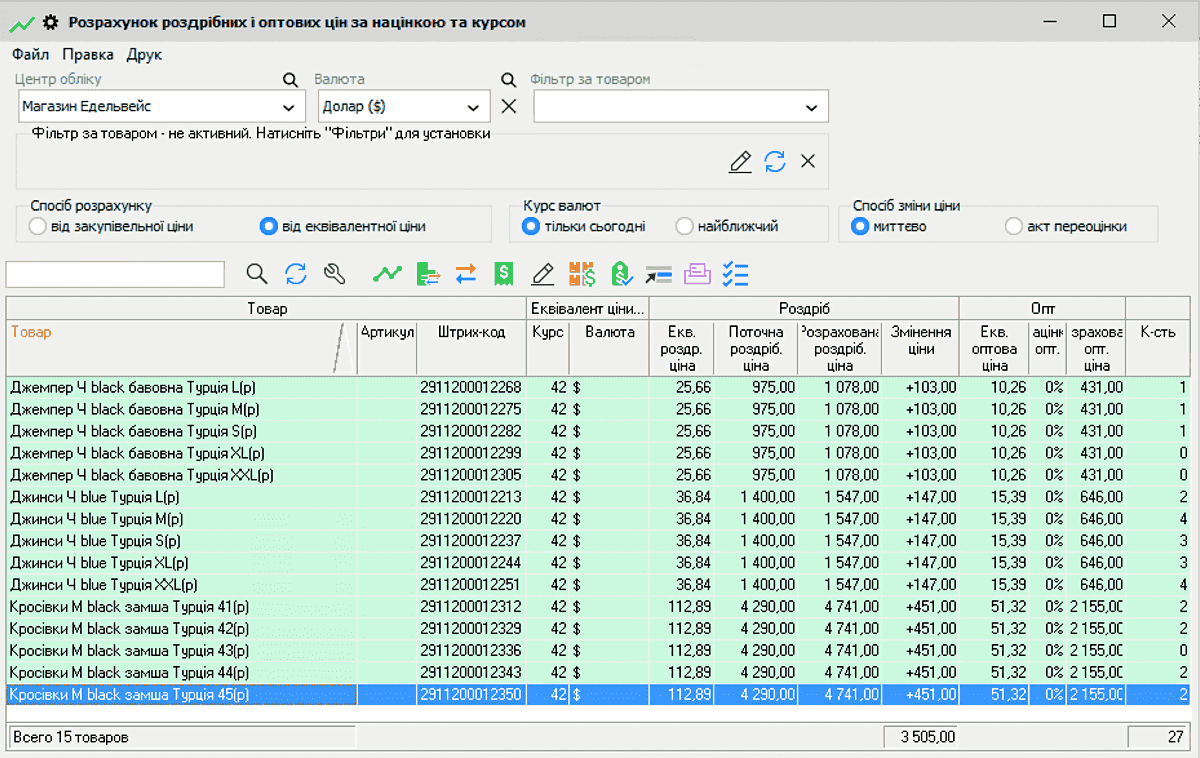
Example of a recalculation form: the prices and exchange rates shown are for illustration.
Open the calculation and prepare the products
- Open the required mode. Go to “Склад → Розрахунок роздрібних і оптових цін за націнкою та курсом” (Warehouse → Calculate retail and wholesale prices by markup and exchange rate). In Ukrainian command names, “оптова” means wholesale.
- Select the products. Search by SKU or barcode, or use the F12 filters. Compare the list with the planned group and the required accounting center—the store or warehouse in Torgsoft.
If calculating from the purchase price
- Check the receipt data. The product must have been received in the required foreign currency with a purchase price specified. Set the purchase currency in “Документ → Прихід товару” (Document → Goods receipt).
- Select the basis and currency. If the data matches the purchase, select “Від закупівельної ціни” (Based on purchase price). Select the purchase currency in the calculation form.
- Check the retail and wholesale markups. They must match the values approved by the owner.
- Change the markup if needed. First make sure the required product or group is selected: the change applies to the selected items. Choose “Змінити роздрібну націнку” (Change retail markup) or “Змінити оптову націнку” (Change wholesale markup), enter the approved percentage, and click “Записати” (Save).
If calculating from the selling price in foreign currency
- Open the product card. On the “Еквівалент ціни у валюті” (Equivalent price in currency) tab, the approved currency equivalents must be specified for the retail and wholesale prices you want to recalculate.
- Select the basis and currency. In the calculation form, select “Від еквівалентної ціни” (Based on equivalent price) and the currency used for the equivalents.
Set the exchange rate and review the new prices
- Determine the selling rate. In the program, buying and selling are defined from the entrepreneur’s perspective. Before entering a bank rate, compare what “buy” and “sell” mean at the bank and in the program. To recalculate a selling price, use the value in the “ПРОДАЖУ” (SELL) field.
- Enter and save the rate. Open “Курс валют” (Exchange rates) and enter the value approved by the owner in the “ПРОДАЖУ” (SELL) field. Save the exchange rate record and close the window.
- Select the rate date. “Тільки сьогодні” (Today only) uses today’s record, so create or update it before calculating. “Найближчий” (Nearest) lets you use the most recently entered rate. In either case, check that the value in the rate column matches the owner’s decision.
- Choose how to apply the change. Select “Миттєво” (Instant) to change prices immediately or “Акт переоцінки” (Revaluation document) to create a separate document.
- Press F5. Review the calculated retail and wholesale prices and the difference from the current prices. Check the result before clicking the button to set the price.
What to check if the result is unexpected
- The product is missing from the list. Check the filters, selected store or warehouse, and whether a currency equivalent is present. In the calculation mode based on equivalent price, an item without such a value is not displayed. If there is no equivalent, the owner must first approve the selling price in foreign currency. Then enter it in the product card.
- The price differs by a few hryvnias. Check the rounding settings in the product type. If there are none, open “Налаштування → Параметри → Загальні” (Settings → Parameters → General) and check whether rounding of selling prices to whole numbers is enabled.
- The discrepancy is substantial. Check the currency, selling rate, purchase price or equivalent, and markup in sequence. Separately compare the VAT settings and the price after the current discount.
- The current price is correct, but the markup needs adjustment. The owner must first confirm the current selling price. For a product purchased in foreign currency, the program calculates the markup from the purchase price converted to hryvnias using the nearest rate. As a result, the markup may become negative if the current selling price is lower than the converted purchase price.
- Click “Змінити роздрібну націнку” (Change retail markup) and select “Розрахувати націнку за поточною ціною та останньою закупівлею” (Calculate markup based on current price and last purchase).
- Click “Записати” (Save) and compare the resulting markup with the current selling price and the purchase price at the applied rate.
- For the wholesale price, follow the same steps through “Змінити оптову націнку” (Change wholesale markup). Apply the approved values using the corresponding price setting button, as described below.
Apply the retail or wholesale price
- Choose the required action. Click “Встановити роздрібну ціну” (Set retail price), “Встановити оптову ціну” (Set wholesale price), or “Встановити роздрібну та оптову ціну” (Set retail and wholesale price). If only retail prices have been approved for change, click “Встановити роздрібну ціну” (Set retail price).
- After an instant change, open the warehouse status. Compare the prices of the products selected for verification with the approved calculation.
- If using a revaluation document, apply it. Open “Документ → Акт переоцінки” (Document → Revaluation document), find the required document, and click “Застосувати переоцінку” (Apply revaluation). Select the same accounting center—the store or warehouse in Torgsoft—that was specified during calculation.
- Check the price at the checkout. Ask the sales assistant to open a product selected for verification and compare its price, including after a discount, with the approved value. If there is a discrepancy, pause revaluation of subsequent groups until the reason is identified.
When a manual price change is sufficient
For one or several products, open the product card from the warehouse status and change the price manually. After saving, check the value in the table and at the checkout.
If you need to increase or decrease prices uniformly across a product group, or set a specific value, follow these steps:
- In the warehouse status, enable multi-row selection by pressing Ctrl + X, then select the required products.
- Open “Умови продажу товару → Змінити відпускну ціну” (Product sales conditions → Change selling price).
- Select “Збільшити” (Increase), “Зменшити” (Decrease), or “Встановити” (Set), enter a number, and specify whether it is a percentage or an amount in currency.
- Select the retail or wholesale price and the rounding method.
- Review the list of items at the bottom of the form: the change must apply only to the approved products.
- Click “Змінити ціну” (Change price). After applying the change, check the new prices of the selected products in the warehouse status and at the checkout.
If the price must depend on the purchase price or a currency equivalent, use the exchange rate calculation mode. Use a group change by percentage or amount for an approved increase or decrease to current prices.
Update price labels and check prices on the website
- Ask an employee to print new price labels. The warehouse status provides options for printing labels and price lists. After applying the revaluation, the employee must print the required labels, replace the labels next to the products, and compare the prices of several items with the checkout.
- Ask the person responsible for the website to update prices. They must update prices using the method used by your online store, open the products selected for verification on the website, and compare their prices with the values approved for online sales. If values differ, they must find the reason and check again after correcting it.
- Record the result. The warehouse status, checkout, price label, and website must show the prices approved for the relevant sales method. Record who performed the revaluation, which rate was applied, and which items were checked.
Start with “Файл → Зберегти базу даних” (File → Save database) and ask the administrator to test restoring the copy. Then approve the exchange rate and calculation basis and revalue a small group of products. Move on to the next groups once the prices at the checkout, on the labels, and on the website match the approved values.


 Go back to the previous step