


Keep copies separate from your work computer
Products, stock levels, sales, and settlements with customers and suppliers are working information that is difficult to recreate after a failure. Recovery requires a current backup. If it is stored only on the same computer, a disk failure can affect both the working data and the archive.
Torgsoft’s “Cloud Data Archive” option creates backups on a schedule and sends them to Google Drive. The owner chooses what to copy, when to run the task, and how long to keep the archives.
What to include in the cloud archive
You can create a database archive, an archive of the program directory, and a separate task for synchronizing product photos. For synchronization, the photos must be stored in the program directory. If a photo is deleted from that directory, it will also be deleted from the cloud or moved to the trash. Synchronization does not replace a separate backup of the photos.
Before setting things up, make a short list of what needs to be saved. If you use product photos, check where they are stored. Treat the database, program directory, and photo tasks separately: each may have its own schedule and need for monitoring.
How to plan backups
Choose a task type
Decide whether you need a database archive, a program directory archive, or photo synchronization. Give tasks clear names so you can easily tell their purpose when checking them.
Set a schedule
Archiving can be scheduled daily, weekly, or monthly at a specified time. Cloud database archiving must not coincide with local archiving: if the local archive is created at the default time of 17:00, schedule the cloud task for 17:10 or later. Choose a frequency that suits the store’s operations: how much new data would you have to restore if the latest copy turned out to be old?
Plan the retention period
The task lets you set a retention period, after which old archives are automatically deleted. Leave enough time to notice a problem and choose an earlier copy.
Set up compression and access
Database archives can be compressed before they are sent. The task requires authorization in a Google account to work with Google Drive.
Backup frequency and retention period are separate decisions. The first determines how recent a copy will be; the second determines how long earlier archives will remain available.
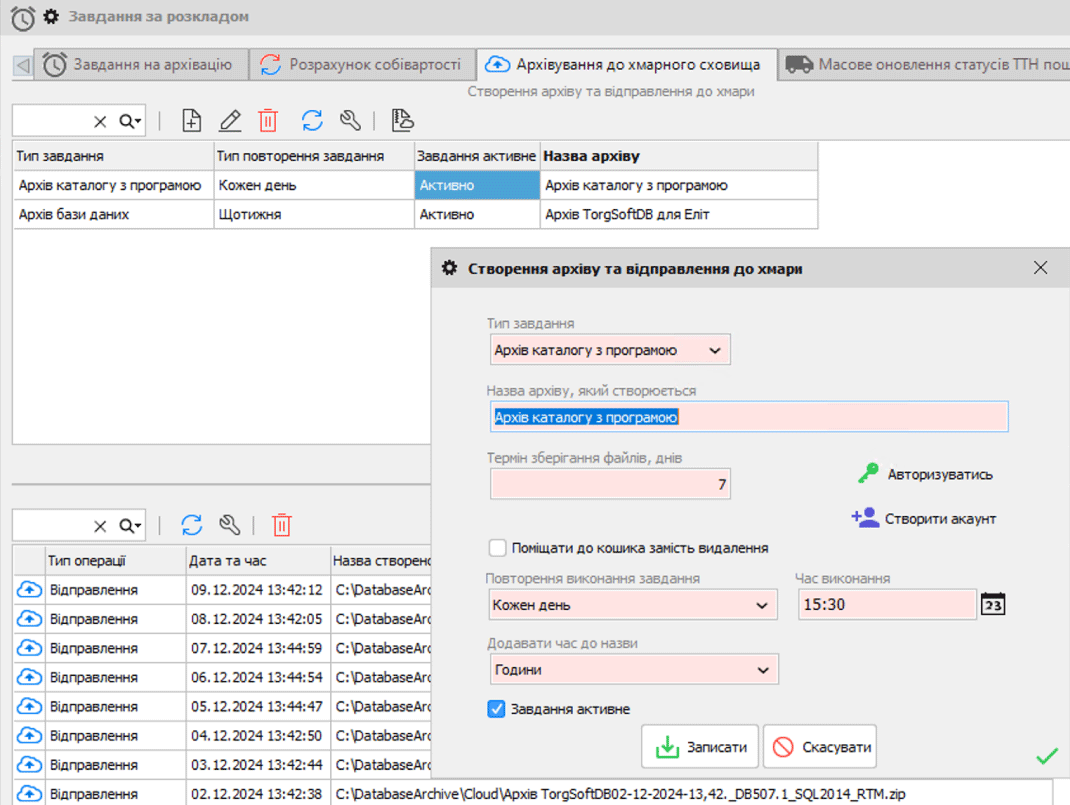
Check the first task’s result
You do not need to leave the main Torgsoft program open for archiving: the task runs in the background through the application server service. The computer must be on and awake, and the application server service must be running; internet access and valid Google authorization are required. A missed task is deferred until the next time its schedule conditions are met.
After setup, wait for the first run and check whether an archive has appeared in Google Drive. Compare the copy date with the expected schedule. Repeat this check periodically and make sure you can access the required Google account.
Plan the steps to take after a failure in advance: who will find the required copy, who has access to the storage, and whom to contact about recovery. The specific recovery method should be confirmed for your situation.
Consider backup setup complete once you have checked the result. Keep a list of the tasks, their schedules, and retention periods so you can monitor whether copies remain current.
Enable cloud archiving
Learn about the option and discuss activation with the orders department on Telegram @torgsoft_sale or by phone at +38 (067) 558 37 84.
 Go back to the previous step