


Sold an item? Notify its owner
A store can accept goods from a supplier and pay them after a sale. To reconcile accounts, the supplier needs to know what sold, in what quantity, and what amount to include in the settlement.
When there are several such suppliers, preparing separate notifications becomes a daily task. Torgsoft’s additional “Consignor Notifications” option automatically sends the supplier a notification about the sale of their goods by email or SMS.
What information the supplier will receive
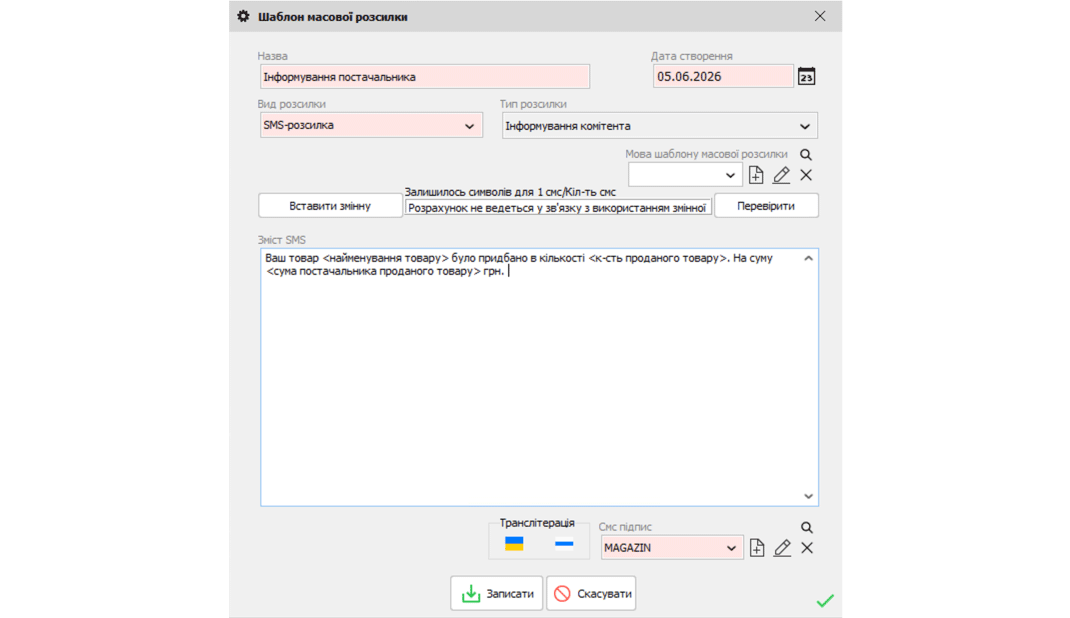
The message text is prepared in advance in a template. When a sale is made, Torgsoft inserts the details of the sold item. The message can include the product name, SKU, quantity, and the supplier’s amount for that item.
For example, an artisan consigns jewelry to a store. After a pair of earrings is sold, they receive a message with the product name, SKU, quantity sold, and supplier’s amount. This is an illustrative scenario: you determine the message contents according to your arrangements.
Message essentials
Product + SKU + quantity + supplier’s amount. This set of details helps clarify which sale the message refers to.
What to prepare before setup
Agree on recipients
Decide who should receive a notification after each sale. You can turn off notifications for an individual supplier; their goods will still be sold without such alerts.
Choose a channel
You can choose email or SMS in the template. Email requires Microsoft Outlook to be configured. SMS requires a connection to TurboSms or AlphaSMS and a completed SMS signature. Check that suppliers’ contact details are up to date in advance.
Prepare the text
Write a short, clear message and add the required product details. Agree with suppliers on what the stated amount means and how you will use it when reconciling accounts.
Check sent messages
Sent messages can be viewed in the mailing history. After setup, we recommend checking a message against an agreed sample sale to make sure the product name, quantity, and amount are clear to the recipient.
Before launch, it is worth agreeing on three things: who receives the messages, which channel to use, and what information to include. This helps suppliers know what information to expect after a sale.
Who can benefit from this process
Consider this approach if you accept goods from different owners or small manufacturers and pay them after a sale. Examples include clothing and footwear consignment shops, second-hand stores, and vintage shops.
This approach can also suit jewelry, furniture and decor, antiques, art, musical instruments, sports equipment, collectibles and children’s goods, local brand products, and handmade items. What matters is your arrangement with the supplier, not the product category.
Set up notifications for your store
Gather your suppliers’ contact details and an example of the message you want to send. You can ask the order department about the option’s setup terms on Telegram @torgsoft_sale or by phone at +38 (067) 558 37 84.
 Go back to the previous step