


See visitor traffic alongside sales
Revenue and the number of receipts show sales results. But without visitor data, it is difficult to understand how many people came in and what share of them made a purchase. The same number of receipts with different levels of traffic can indicate different situations in the store.
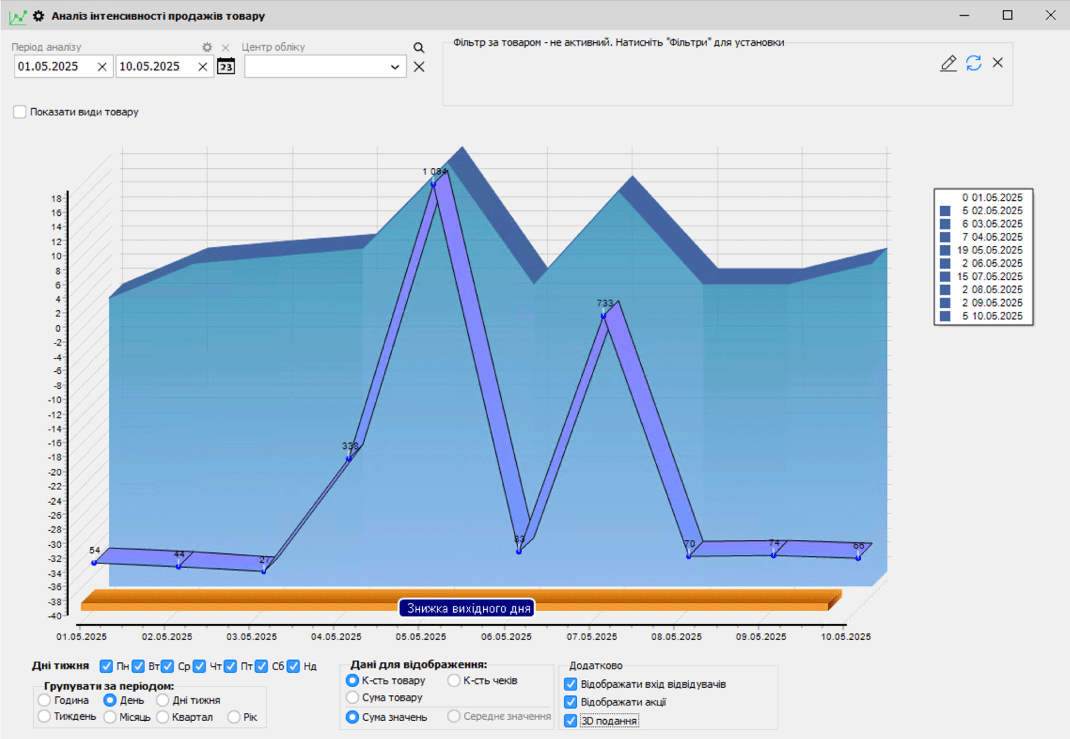
The “Visitor accounting” add-on option for Torgsoft collects data from an entrance counter. You can view it on a chart alongside sales to assess the ratio of visits to purchases, peak hours, and changes during promotions.
How to calculate conversion
Conversion shows what share of visitors became customers. For example, 200 people came into the store in one day, and 40 made a purchase. In this illustrative example, conversion is 20%.
Conversion formula
Number of customers ÷ number of visitors × 100%
40 ÷ 200 × 100% = 20%
If you use the number of receipts for the calculation, bear in mind that one customer may have several receipts. Agree on which metric you will use, and apply the same approach in every comparison.
A low share of purchases is a reason to check what is happening on the sales floor. Pay attention to whether the required product is in stock, prices, product display, and the availability of advice. The metric alone does not explain the cause or prove that sales staff are performing poorly.
What to compare in day-to-day operations
Peak traffic hours
Review visitor traffic by hour. If a surge regularly occurs at a particular time, try adding staff to the shift then. During quieter hours, assess how many employees are needed to serve customers and handle other store tasks.
Promotion periods
Compare traffic and sales before a promotion, during it, and after it ends. Torgsoft lets you display promotion periods on the chart when data is grouped by day. This helps you see whether visitor traffic changed and whether those changes were accompanied by purchases.
Individual stores in a chain
You can link a counter to the relevant store. Analyze each store’s metrics separately and compare like-for-like periods. Consider differences in location, product range, and opening hours before applying a decision from one store to another.
What to prepare before getting started
You need a compatible hardware counter at the entrance to collect data. The option’s help documentation describes working with TK-01 and TK-04 devices. Before ordering, confirm the right model and connection requirements for your store.
Using the sensor requires an account on the GSM Counters portal with a plan that provides Web API access. The option is available in Torgsoft Ultra and Torgsoft Terminal and must be activated separately for each installed counter; payment is annual. Connecting devices in Torgsoft uses an API key from that account. After activating the option, restart the TorgSoftService service to start automatic data downloads from the portal. Data appears in the program with a delay, which is worth bearing in mind when checking the connection.
After installation, collect data for at least a few weeks. This is a practical guideline for an initial comparison of weekdays and weekends, opening hours, and promotion periods. Also record changes to staff schedules, product range, or advertising to provide context for analysis.
Start with one question: when does the store need extra staff on a shift, or what changed during a promotion? Compare visitor traffic with sales, check possible causes, and assess the result after making the chosen change.
Choose a solution for your store
Review the option details and contact the orders department to confirm the equipment and connection requirements. Telegram: @torgsoft_sale, phone: +38 (067) 558 37 84.
 Go back to the previous step