


Reconcile shelf stock with inventory records
Inventory helps identify items whose actual quantity differs from the recorded quantity. During a stocktake in Torgsoft, the physical quantity of each item is compared with its recorded balance.
Process: prepare an inventory sheet, count the items, recheck discrepancies, and close the document. If the store remains open, organize the count in sections and decide in advance how item blocking will work.
Plan the scope of the count
Decide what needs to be counted: the entire warehouse, a specific product group, or selected items that need checking. This is your count plan: prepare a list of the items and locations employees need to inspect.
For a large stocktake, you can divide the work by department or shelving unit. Agree on who will count the items, who will enter the results, and who will check discrepancies. Mark completed areas in your plan so no shelf is missed or counted twice.
From inventory sheet to accurate stock balances
Prepare the inventory sheet
Create an inventory sheet for the planned stocktake and add the full list of recorded items that need checking. Before starting, compare the prepared list with your plan: which items need checking and where they may be stored.
Count the actual quantity
Enter the results using a barcode scanner or manually. If you prefer to count on paper, print the inventory sheet, write down the actual quantities, then transfer the results to the program after counting.
Check for shortages and surpluses
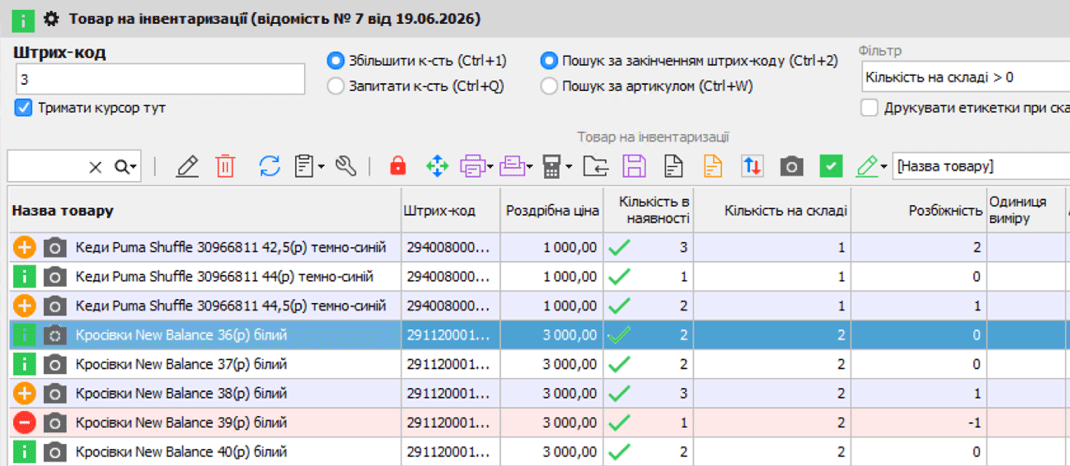
The inventory sheet shows the actual quantity, recorded balance, and the discrepancy between them. Count items with a shortage or surplus again. For example, before confirming a shortage, check the back room and other shelves: some items may have been placed elsewhere.
Close the verified document
After the inventory sheet is closed, Torgsoft automatically creates receipt documents for detected surpluses and write-off documents for shortages. Recorded balances are brought into line with actual quantities. Close the document once questionable results have been checked and the quantities confirmed.
How to read a discrepancy
Actual quantity − recorded quantity = discrepancy. A positive value means a surplus; a negative value means a shortage.
How to count stock while sales continue
The store can remain open during inventory. For this scenario, the recommended setting is to block an item after its first scan: the item becomes unavailable for sale when its first unit is scanned. Items whose count has not yet started remain available for sale.
Count in small sections. For example, first check one product group on a shelf, then move on to the next. Tell sales staff which items are currently being counted and agree on how to coordinate the count with sales. Choose the blocking setting before you start. After finishing the count for each item, set its status to “Counting completed” so it becomes available for sale again.
The basis of a stocktake is a complete count plan, careful counting, and rechecking discrepancies. Closing the inventory sheet completes the adjustment of recorded balances based on confirmed results.
Get ready for inventory
The official guide provides detailed explanations of the inventory sheet, counting, and blocking settings. If you have questions about the program, contact us on Telegram at @torgsoft_sale.
 Go back to the previous step