


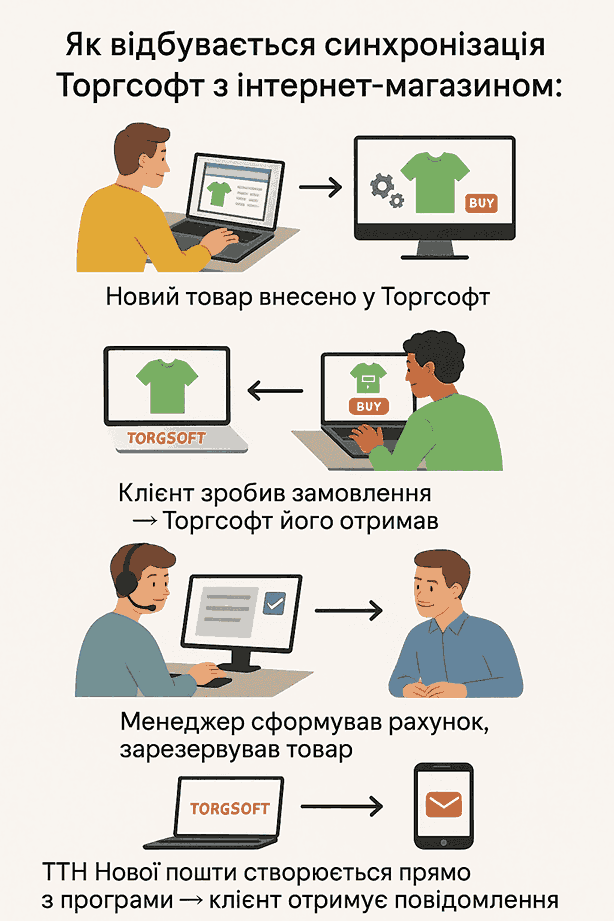
To keep records for your own online store in Torgsoft, organize data exchange in both directions: send products, prices, and stock levels from the program to the website, and send customer orders from the website to Torgsoft. Keep the main inventory records in the program: record receipts, sales, returns, and transfers so the website receives information about actual stock levels.
Connecting the store requires a paid “Ultra” or “Terminal” license, the separately paid “Online Store Synchronization” option, and the involvement of the website developer. First agree on the product range, warehouses, prices, and file formats, then test the exchange with one model in several sizes. Enable the automatic schedule only after a manager can correctly accept a test order, issue an invoice, and check the reservation—the product set aside for a specific order until a specified date.
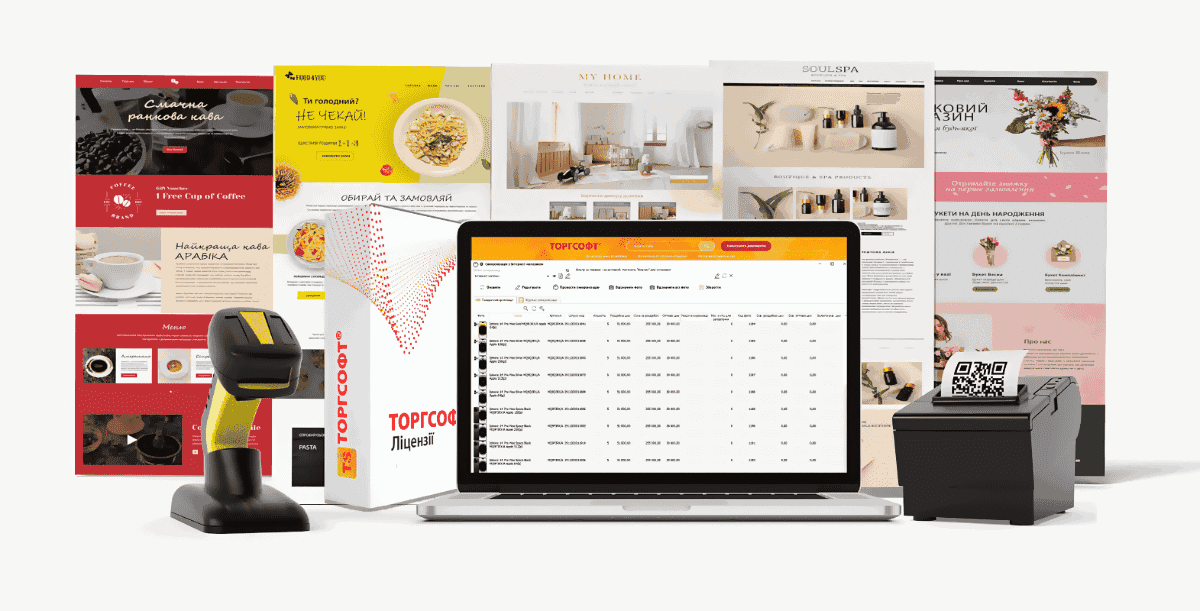
- What to purchase to synchronize Torgsoft with an online store
- Agree with the developer on what data to transfer and where
- Prepare products and their codes for data exchange
- Create a synchronization object for your website
- Configure warehouses, available quantities, and prices
- Select catalog fields, encoding, and photo transfer method
- Accept orders and check the invoice, reservation, and payment
- Run a controlled launch before publishing the full catalog
- Enable the schedule and assign someone to handle errors
What to purchase to synchronize Torgsoft with an online store
The option works with “Ultra” and “Terminal” licenses; “Start” does not support it. “Ultra” is intended for use on a local network, while a terminal license is for remote workstations sharing a database on a server. Compare the current terms for Torgsoft licenses with where the product specialist, order manager, and warehouse staff will work.
The paid “Online Store Synchronization” option has a one-time perpetual license. How it is purchased depends on the configuration: for workstations running certain versions, for a local network, or for a terminal license server. Confirm the required licensing before paying. Setup by a Torgsoft specialist is a separate service, and website development or customization is not included in the option price.
Before purchasing, you can activate the option in the demo version for 30 days. A meaningful trial requires a website or test copy that can receive the catalog and return orders. Installing Torgsoft alone is not enough to evaluate both sides of the exchange.
Agree with the developer on what data to transfer and where
The store owner sets the sales rules, the person responsible for inventory prepares products in Torgsoft, and the developer configures the website to receive the catalog and create orders. Record the arrangements in a short table: what will be transferred, which website field it will go into, and who will resolve errors.
| Data | Direction and format | What to agree on before launch |
|---|---|---|
| Catalog, attributes, prices, and quantities | Torgsoft → website; CSV or YML | Field list, category mapping, prices, product availability, and website update rules |
| Photos | Torgsoft → website; separately configured file transfer or use of links | Storage location, image addresses, file names, and product associations |
| Orders | Website → Torgsoft; SAL, XML, or JSON | Product identifiers, order number, quantity, prices, currency, customer details, and the required processing workflow |
CSV, YML, SAL, XML, and JSON are file format designations that need to be agreed on with the developer. CSV contains tabular data, YML is used for a structured product catalog, and SAL, XML, or JSON are used for individual customer orders. A product file does not replace an order file: the developer must implement both directions according to Torgsoft requirements. Begin coordination with the synchronization and order acceptance settings.
Do not limit the technical specification to the name of the website platform. Ask the developer to demonstrate in a test how the website reads your specific file, updates an existing product, and creates a compatible order. Separately agree on what should happen to a product card that is absent from the next export.
Prepare products and their codes for data exchange
A product identifier is the code the website and Torgsoft use to match a specific product item. Agree with the developer which field to use for this link, and preserve its value when updating the catalog.
First decide which stores and warehouses will serve online sales. In Torgsoft, these are called accounting centers. For example, the website can use the main warehouse, while products in the sales area are included only after a manager confirms availability.
- Count the stock you are starting with and enter opening balances. If you already use Torgsoft, compare physical stock with the program before publishing the catalog.
- Organize categories and product cards: names, article numbers, sizes, colors, units of measure, descriptions, and prices. Remove duplicates before configuring links to the website.
- Ask the developer to match each inventory item’s identifier to the requirements of Torgsoft order formats. In a test order, check that the website returns the identifier for the exact size and color ordered, and that Torgsoft finds the corresponding product. Preserve this link in subsequent catalog updates.
- Check the individual mapping for every size and color. A model name alone does not identify the specific variant ordered by the customer.
- Record the rule that changing a name or description must not create a new card on the website. Test it by exporting the test product again.
To reconcile stock, open «Склад → Стан складу» (“Warehouse → Stock Status”): here you can review quantity, size, and price, and trace a stock change to its cause through the product movement history. The «Стан складу» mode (“Stock Status”) also lets you filter for specific warehouses and find items with zero or negative quantities.
Create a synchronization object for your website
After activating the option, open «Склад → Синхронізація з Інтернет-магазином» (“Warehouse → Synchronization with Online Store”) and add a synchronization object—a set of exchange parameters for a specific website. Enter a clear name, the store’s address, and the «Інтернет-магазин» (“Online Store”) category. Create a separate object for each website so their addresses, files, and schedules do not get mixed up.
The website administrator must prepare the exchange location and provide the connection parameters. The catalog can be transferred via FTP (File Transfer Protocol) or a web server. To receive orders, the website administrator must configure an FTP folder where the website will write individual SAL, XML, or JSON files, and provide Torgsoft with access parameters. For FTP, provide separate folders for photos and other files. Check access to the required folders from the computer that will perform the exchange.
Choose how product names and descriptions will be generated. First assess the result on one product card: the name should remain readable, and size, color, and other attributes should go into the appropriate website fields. If the website categories differ from the product type tree—the category hierarchy in Torgsoft—the person responsible for inventory and the developer must agree on how to map them. To do this, open «Товарознавство → Вид товару» (“Product Management → Product Type”), select the required branch, click «Редагувати» (“Edit”), and fill in the «Розділ синхронізації» (“Synchronization Section”) field with the agreed value. After the exchange, check that the test product appeared in the right website category.
Configure warehouses, available quantities, and prices
Select stock that can actually fulfill an order
On the «Центри обліку» (“Accounting Centers”) tab, select the stores or warehouses for the exchange. In the «Товар списувати з» (“Deduct product from”) field, set the accounting center used to issue the invoice. Selecting several warehouses requires a separate agreement: who will pick the order, whether a transfer is needed, and when the manager can confirm availability to the customer.
If you enable «Синхронізувати товари тільки в наявності» (“Synchronize only available products”), items with zero or negative quantities will not be sent in the catalog for synchronization. Before enabling this condition, agree with the developer on the desired website behavior: hide the product, show “Out of stock,” or allow the customer to contact a manager. Check how the website handles a product disappearing from the file.
Test separately how reservations affect availability. Do not treat the physical quantity on the shelf as the quantity that can be promised to a new customer: some products may already have been set aside for another order. Agree with the developer which exchanged value the website will use to allow a purchase, and check it after creating a reservation.
Decide which price will be used on the invoice
The «Для товарів рахунка брати ціни з» (“Use prices for invoice items from”) setting determines whether the Torgsoft price or the online store price will be used. Agree on this before launching website promotions so the manager knows what amount will appear on the invoice.
Illustrative example. A product costs UAH 1,000 in Torgsoft and UAH 800 on the website. If the online store is selected as the source of the invoice price, the difference is UAH 200, or 20% of the UAH 1,000 price, and is shown as a discount. During testing, compare the unit price, quantity, and order total.
If stores sell a product at different prices, the owner must agree with the developer which price the website should display. Before launching the schedule, the person responsible for inventory compares the test product in Torgsoft, the exchange file, the website card, and the issued invoice. Resolve any discrepancies against the agreed prices before accepting real orders: the website must show the planned price, and the invoice must use the selected price source.
Select catalog fields, encoding, and photo transfer method
On the «Файли синхронізації» (“Synchronization Files”) tab, agree with the developer on the CSV or YML format, file name, column headers, and field list. For the first launch, prepare the required set: identifier, name, category, variant attributes, price, quantity, description, and photos. Include additional attributes when the website has defined where to display them and how to use them in filters.
The available settings are ANSI and UTF-8 with BOM. BOM is the initial encoding marker in a text file. The developer must agree on the encoding for the selected exchange format and test Ukrainian letters in a product name, the customer’s surname, and address in both directions.
For fields containing lists of photo file names or links, images must be stored in the directory specified in «Налаштування → Параметри → Товар → Фотографія» (“Settings → Parameters → Product → Photo”). In the settings, enter a link prefix—the beginning of a web address to which the program will add the photo file name. Ask the developer to open the resulting address in a browser and check that the image belongs to the specific product variant.
If you enable filtering to include only products with photos, items without images will not be included in this exchange. Before launch, count how many products this will leave unpublished. If a full retransmission of photos is needed, use the «Відзначити всі фото» (“Mark all photos”) action; for a regular exchange, the program sends new and changed images.
If the website starts importing after a separate signal, the developer can provide parameters for a POST request—a message to the server indicating that the transfer is complete. Sending the file alone does not confirm that the catalog has been updated: also check that processing has finished on the website.
Accept orders and check the invoice, reservation, and payment
The website must create orders in a compatible SAL, XML, or JSON format. For the first test, open «Документ → Замовлення віддаленого клієнта» (“Document → Remote Customer Order”), select the synchronization object, and click «Прийняти замовлення» (“Accept Order”). A separate local SAL file can be imported using the «Завантажити файл замовлення» (“Load Order File”) action.
First, the manager checks the order number, customer, contact details, products, sizes, quantities, and prices, and checks whether the customer is already in the customer database.
Before the first manual order is processed, ask Torgsoft support to show the manager how to prepare an empty card for a new customer and how to link a regular customer’s order to their existing card. For a new customer, the manager clicks «Записати\Відкоригувати дані по контрагенту» (“Save\Edit counterparty details”) and selects the prepared empty card, which the program will fill with the order data. Before issuing the invoice, the manager checks that the correct customer is selected and that no other person’s card has been changed.
Before enabling automatic acceptance, the person responsible for setup checks the «Клієнти» (“Customers”) tab and runs test orders for both a new and a regular customer with the developer. The manager checks which cards these orders are linked to and whether any unnecessary duplicate customer records were created.
Creating an invoice, reservation, and payment record depends on the order type and settings. After acceptance, the manager must check each result.
Invoice. In the manual workflow, the manager clicks «Виписати рахунок» (“Issue Invoice”) and then opens it through «Документ → Торгівля з випискою рахунка» (“Document → Trade with Invoice”). Before enabling automatic acceptance, the store owner agrees with the developer on the required documents, reservations, and payment records. The developer explains to the manager what SaleType means—the order type parameter in the exchange file—and which documents and payments the program must create with that setting.
For values 3 and 4, a delivery note is also created during import, so do not use them if the manager must confirm the order first. The manager imports one test order of the agreed type and checks the documents, reservation, and payment before launching the schedule. If the product is subject to strict warranty tracking—the tracking of individual units by serial number—after the invoice is created the manager must open the «Торгівля з випискою рахунка» (“Trade with Invoice”) mode, select the relevant product, and click «Серійні номери товару» (“Product Serial Numbers”).
Then scan or enter manually the serial number of the unit being prepared for the customer.
- Fulfillment warehouse. If a product needs to be sourced from different locations, configure the option to offer other warehouses and check the allocation. Allocation parameters are shared across the synchronization object. For normal order fulfillment, leave permission to exceed the available warehouse quantity disabled.
- Reservation. Enable «Резервувати товари рахунка» (“Reserve invoice products”) and set the term. If the order contains a reservation date, the program uses it; if there is no date, it uses the number of days specified in the synchronization object settings. After processing, check the product and the reservation end date.
- Payment. If the workflow calls for a paid invoice, first create a cash register in the relevant currency through «Налаштування → Каса» (“Settings → Cash Register”) or a settlement account in the relevant currency through «Налаштування → Торговельна мережа» (“Settings → Retail Network”). Then, on the «Оплати» (“Payments”) tab, set a payment method for each currency and select that cash register or settlement account. The manager must match the program record to the actual receipt of funds.
If no payment method is defined for the currency, the settlement account has been deactivated, or the cash register day is closed or cannot be opened, the order invoice is created without payment. During automatic loading, these errors are recorded in the program’s error log. A notification about a new order therefore does not replace payment checks.
For orders in another currency, also check the relevant foreign currency price list and selling exchange rate. For a test order, the manager must compare the price, currency, and amount with the agreed sales terms. Bonus and gift certificate payments in this exchange apply only to orders in the national currency.
Run a controlled launch before publishing the full catalog
Select a small test group and ask one manager to go through the customer and order processing workflow. In the «Склад → Синхронізація з Інтернет-магазином» (“Warehouse → Synchronization with Online Store”) window, select the synchronization object, check the product list, and click «Провести синхронізацію» (“Run Synchronization”). The developer must be available to check what the website received and sent.
- One model, different sizes. Export a model in two sizes with different stock levels. On the website, check the separate variants, their identifiers, prices, photos, and Ukrainian text.
- Stock change. Record an inventory transaction that changes the quantity of one variant. After the next exchange, compare Torgsoft, the file, and the product page.
- Zero quantity. Check an item with no stock: the website must follow the agreed availability rule.
- Test order. Place an order for a specific size and import it into Torgsoft once. Compare the order number, product variant, quantity, and amount.
- Documents and reservation. Open the invoice and check the accounting center, reservation period, and payment record if the test workflow calls for one.
- Repeat the cycle. Run the next exchange. Make sure the product card updates without duplication and the accepted order does not appear a second time. Do not upload its file manually again.
- Finish the test. Cancel the test documents and reservations according to the store’s accepted procedure, then reconcile the final stock levels.
Expand the catalog only after this workflow succeeds. To configure the settings on your own, you can use the online store synchronization video lesson.
Enable the schedule and assign someone to handle errors
On the «Час синхронізації» (“Synchronization Time”) tab, click «Створити інтервал синхронізації» (“Create Synchronization Interval”). In the interval settings window, select «Торгсофт» (“Torgsoft”) as the task runner if the exchange is to be performed by the running program. Set the computer and Windows user under which the exchange will run; for the current workstation, use the «Отримати» (“Get”) button. Specify the start time, interval, and end time for synchronization, then click «Записати» (“Save”). Set the interval no more frequently than once every 10 minutes, taking other synchronization objects into account. In the created schedule entries, check the «Діє» (“Active”) mark and the required actions: «Синхронізувати товари (та інші дані)» (“Synchronize products (and other data)”), «Завантажувати замовлення» (“Load orders”), or both.
When «Торгсофт» (“Torgsoft”) is selected, the program must be running on the specified computer under the specified Windows user. If this option is used on a server, the administrator must ensure that the required program session remains active. The alternative in the «Завдання виконує» (“Task runner”) field is «Сервер додатків» (“Application Server”). This option allows synchronization without running Torgsoft under a specific user. Agree on the runner selection with the administrator using the description of the «Завдання виконує» (“Task runner”) setting, and run a test exchange on the schedule.
After setup, the responsible employee must check the log to confirm the exchange ran as scheduled. Also check user permissions: restricted access to products can limit the range of products sent to the website.
There is a delay between an inventory transaction and the page update while the exchange starts, data transfers, and the website imports it. Because of this, different customers may order the last unit at the same time, or it may be bought in the sales area. For products with low stock, ask the manager to confirm availability before promising shipment.
The responsible employee must monitor the last successful exchange on the «Журнал синхронізації» (“Synchronization Log”) tab, error messages, and new orders. Configure notifications for this user through «Налаштування → Користувачі» (“Settings → Users”) so monitoring does not depend solely on the owner logging in.
| What happened | What to do | Who is involved |
|---|---|---|
| The file was transferred, but the price or quantity on the website did not change | Compare the value in the file with Torgsoft, then check that the website import finished and the website fields are mapped correctly | Person responsible for inventory and website developer |
| Files or photos are not being transferred | Review the log event, check the address and folder access, and check that images are available at their links | Website administrator; for program configuration errors, Torgsoft support |
| Order loading stopped | Find the problem file in the receiving folder, save a copy, and give it to the developer to correct its structure | Manager and website developer |
| An invoice was created without the expected payment | Check the currency, payment settings, cash register or account status, and error log | Manager and person responsible for payments |
An invalid order file can block subsequent order imports. Torgsoft first retrieves files from FTP to a local receiving folder, so the absence of a file on the server does not confirm that a document was created. The manager must confirm the actual receiving folder on the computer performing the exchange: the default path is “C:\Журнал Torgsoft\Прийом замовлень”. In this folder or its subfolders, such as “1” or “2”, find the problem file and save a copy.
The developer must correct the file structure to match the order format. After correction, retry acceptance. If the order needs to be generated again on the website, first check its number in Torgsoft, then remove only the invalid file whose copy has already been saved from the receiving folder. Do not delete the entire order queue.
Assign responsibility by area: store staff are responsible for accurate products and documents, the developer for catalog imports and website order files, the administrator for the server and access, and Torgsoft support for questions about program operation and setup within the terms of service. For a support request, prepare the order number, exchange time, error text, and an example of the problem file, and send them through the agreed secure channel.


 Go back to the previous step