


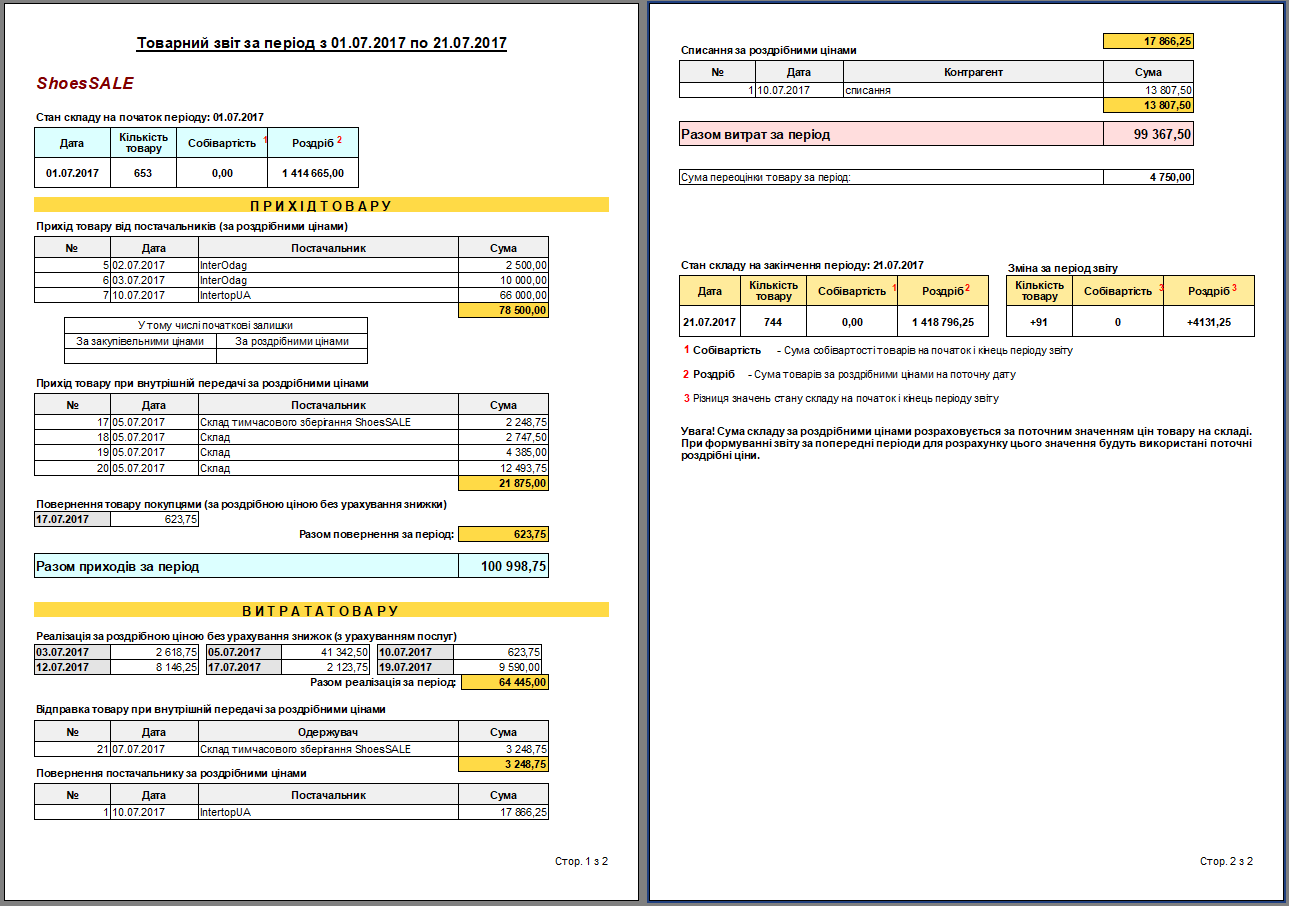
This instruction describes methods for viewing sales history in Torgsoft for various tasks: quick cash balance checks, detailed product analysis, searching for specific receipts, and remote monitoring.
When is it needed
- An owner wants to check the store's revenue for yesterday.
- It is necessary to reconcile the cash amount (Z-report) with the software.
- You need to find out exactly which products were sold.
- Sales have "disappeared" from yesterday's report.
Symptoms
- The "Today" report is empty, even though sales occurred.
- The revenue amount does not match expectations.
- You need to find a receipt for a return.
Reasons for discrepancies
- Date filter: "Today" is selected instead of "Yesterday".
- Unclosed shift: The cashier did not close the program overnight, and morning sales were recorded as "yesterday" (or vice versa).
- Payment type: The report shows only cash, but sales were made via terminal.
Solution
Method 1. Finances: Daily Cash Report
The fastest way to see the total amount of money.
- Menu Report → Daily Cash Report.
- Select the date (yesterday) and the cash register.
- Click Refresh.
- Result: Shows the opening balance, sales total, returns, and final balance.
Method 2. Products: Commodity Report for the Period
Allows you to see a list of sold products.
- Menu Report → Commodity Report for the Period.
- Set the period (yesterday).
- Choose the format:
- List of goods (simple list).
- Break down by receipts (detailed).
- Group (for reordering stock).
Result: A full list of items removed from inventory.
Method 3. Receipts: List of Expenditures
For finding specific documents and sale times.
- Menu Warehouse → List of Expenditures.
- Period filter: yesterday's date.
- Document type: Sales.
- Result: A list of all receipts with exact timestamps. The content of the selected receipt is shown at the bottom.
Method 4. Analysis: Sold Goods Report
For checking payment types (cash/non-cash) and debts.
- Menu Report → Sold Goods Report.
- Allows filtering sales to VIP clients or credit sales.
Method 5. Remote: Mobile App
For the owner who is not at the store.
- Open the Torgsoft app on your smartphone.
- Select the Sales Summary mode.
- Set the date to "Yesterday".
- Result: Total sales amount, gross profit, and number of receipts.
How to verify the result
- The amount in the "Cash Report" matches the RRO Z-report.
- The quantity of goods in the report matches the physical absence on the shelf.
Prevention
- Always close the program (shift) at the end of the working day.
- Periodically recalculate the cost price before viewing profit reports.
Summary
Need the money total — Cash Report. Need the product list — Commodity Report. Need to find a receipt — List of Expenditures.


 Go back to the previous step