


The Torgsoft Mobile App 3.0 connects a phone to the store’s working database through an application server that provides this connection. You need Torgsoft 2026.0.5 or later, Android 7.0+ or iOS 13+, an active paid mobile option, and authorized user access. The server must be running and available for connection. To conduct inventory without a connection, download the inventory sheet in advance—a document for recording the counted quantity of goods. Transfer the results after the connection is restored. See the mobile app page for connection and compatibility requirements.
First, choose the task for the initial connection: the owner will check stock, the stockkeeper will receive a delivery, or the cashier will sell goods. Connect one device, give the user only the permissions needed for that task, and complete the selected action for one product item. Check the result on the phone and in the main program before moving on to daily work.
Connecting Torgsoft Mobile: licenses and costs
“Мобільний додаток Торгсофт” (“Torgsoft Mobile App”) is a paid add-on option licensed for each device. Available actions depend on the base license, activated features, and user permissions. For example, the “Старт” (“Start”) license does not include transfers between warehouses or the bonus system.
Fiscal receipts require the separately paid “Програмний РРО” (“Software cash register”) option—a software registrar of settlement transactions (PRRO). It is charged annually for each device. Integrated card payments require the paid “Інтеграція з банківським терміналом” (“Bank terminal integration”) option, also charged annually for each computer or device.
Before ordering, compare the operations your store needs with the mobile option terms and license capabilities. Check the current price and commercial terms on the additional options page.
How to prepare to connect to the store database
- Identify the working database. Ask the administrator to confirm its name and server so you connect the phone to your store’s data.
- Have a qualified administrator configure the network. A static IP address—a permanent server address on the internet—is required for the connection. The default port, meaning the server connection point number, is 6001 for the working database and 6002 for the demo database. The administrator must configure access according to the connection instructions and check its security.
- Open the employee settings. In the main program, go to “Налаштування — Користувачі” (“Settings — Users”), select the employee, and click “Налаштувати доступ до мобільного клієнта” (“Configure access to the mobile client”).
- Allow mobile sign-in. Enable access and select the required modes—the app sections for carrying out specific tasks.
- Connect the phone to the server. Enter the address and port confirmed by the administrator, tap “Синхронізація даних” (“Data synchronization”), and select the working database.
- Sign in to your account. Enter your Torgsoft username and password, then tap “Увійти” (“Sign in”).
- Check access. In the user settings, check which account is signed in. Make sure the employee can see the modes needed for their tasks.
How to assign permissions to the owner and employees
The owner determines which actions each employee needs, and a user with access-configuration permissions sets the corresponding permissions.
- Give the owner the required reports and financial data. When comparing stores, select the same period and a predefined list of points of sale.
- Give the salesperson access to sales, returns, and stock checks. Allow price changes and changes to sales terms only for employees responsible for those decisions.
- Give the stockkeeper access to receiving and inventory. Add transfers and write-offs according to their duties and the license capabilities.
- Restrict access to sensitive data. If needed, hide the purchase price and the recorded quantity—the stock quantity entered in the program—during inventory, and restrict specific price actions. After configuring access, sign in using the employee’s account and confirm the restrictions are in effect.
Use a separate account with a unique password for each employee. Enable the phone’s screen lock and transmit connection details securely. Do not send screenshots containing passwords in work chats. If a phone is lost, notify the administrator immediately so they can disable access for the relevant user.
How the owner can check stock and sales totals
- Define the purpose of the check. Write down the decision you need to make: confirm availability for a customer, restock a shelf, or find out why sales have declined.
- Find the product. Open “Стан складу” (“Stock status”). Match the item number, color, size, and accounting center—the store or warehouse in Torgsoft—to view the stock of the right item in the right location.
- Check other sizes. If you need another size of a model, use “Наявність розмірів” (“Size availability”). Before promising the item to a customer, ask an employee at the relevant location to check its physical availability.
- Select a report and period. Compare sales over equivalent time periods: figures for an incomplete day can give a misleading impression of a store’s performance.
- Find the reason for a discrepancy. If a figure raises questions, note the product, store, and period. Ask the employee who recorded the transactions to compare the relevant sales, return, or receipt documents with the report figure. Record the reason for the difference and the required action.
Add the modes you use for daily checks to the home screen:
- In the “Вибрані опції” (“Selected options”) block, tap the plus sign.
- Select the required modes and save your choice.
- To change their order, press and hold the desired item and drag it, as described in the app modes help page.
How to receive a delivery on the spot
- Prepare the documents. Before receiving the delivery, check the supplier, delivery note, and store receiving the goods.
- Add the first item. In “Прихід” (“Goods receipt”), scan the product barcode or select the product from the warehouse.
- Check the selected product. Match the name to the packaging and confirm you selected the correct product unit.
- Count the actual quantity. Set aside damaged and disputed units so they are not mistakenly included in the accepted quantity. Enter the accepted quantity in the goods receipt invoice, then repeat the adding and checking steps for the remaining goods in the delivery.
- Check the document. Before finishing, compare the number of items and totals with the supplier’s paper or electronic delivery note.
- Check the result in the database. After processing, open the same item in the main program and compare its stock with the expected amount.
Illustrative example: There were 8 units in the database, and an employee received 5 more. If no other stock movements occurred, the expected stock is 13 units. If the program shows a different number, first check the selected warehouse, the quantity in the document, and other employees’ transactions involving this item.
How to conduct inventory using a smartphone
- Divide the counting areas. Assign a person to each shelf or area so employees do not count the same goods twice.
- Coordinate stock movements. During the count, pause sales and transfers from the area or record each movement separately.
- Open the inventory sheet. In “Інвентаризація” (“Inventory”), open an existing sheet or create a new one for the goods the employee will count.
- Hide the recorded quantity for an independent count. Before downloading the sheet, a user with access-configuration permissions must hide the quantity recorded in the program from the employee. Sign in using the employee’s account and confirm that this quantity is not displayed.
- Prepare for offline work if needed. Download the required sheet to the phone in advance. Disconnect the app from the server and confirm that the downloaded sheet opens.
- Count the goods. Scan the items, enter their actual quantities, and check the added rows.
- Transfer the results. Restore the connection to the server and upload the data.
- Check the correct sheet. In the main program, confirm that the count results were added to that sheet.
- Investigate discrepancies. Recount disputed items and review their receipt, sales, return, and transfer documents from the time of the count. The employee responsible for processing the inventory results must determine how to record the difference after these checks.
First, try this process on a small shelf. For other operations, account for the need to connect to the server: the ability to conduct inventory while offline does not automatically apply to every action in the app.
Sales from a smartphone: payment and fiscal receipt
A fiscal sale requires a PRRO registered with the State Tax Service of Ukraine (STS). Configure it using the instructions for using a PRRO in the mobile app:
- Add the registered PRRO to Torgsoft. In its card, select “Мобільний додаток” (“Mobile app”) as the usage option and click “Записати” (“Save”).
- In the app settings on the phone, select this PRRO in the “Тип чека” (“Receipt type”) field.
- Before a fiscal sale, open the shift in the “Реалізація” (“Sale”) mode settings.
- For cashless payment, select the corresponding payment method. The available list depends on the PRRO settings.
- To end the shift, generate a Z-report—the fiscal report for closing the shift—in “Реалізація” (“Sale”) mode.
For contactless payment using NFC (near-field communication), app version 3.0 can use configured monobank and PrivatBank terminals. You need a compatible phone, a banking app, and the active paid “Інтеграція з банківським терміналом” (“Bank terminal integration”) option.
Acquiring, meaning the bank’s acceptance of card payments, is arranged separately. Before launch, check equipment compatibility, integration keys—data used to connect programs—and service terms with the bank. Review the bank terminal integration terms.
During a sale, the cashier must:
- Check the sale before payment. Check the product, quantity, customer, price, and permitted discount on the screen.
- Check the payment method. For integrated card payments, verify the amount sent to the banking app and wait for the result.
- Match the confirmations. Check the bank’s response and confirm the payment is shown in Torgsoft. Recording a cashless payment in the accounting system does not by itself confirm the bank transaction. Funds are credited according to the acquiring rules.
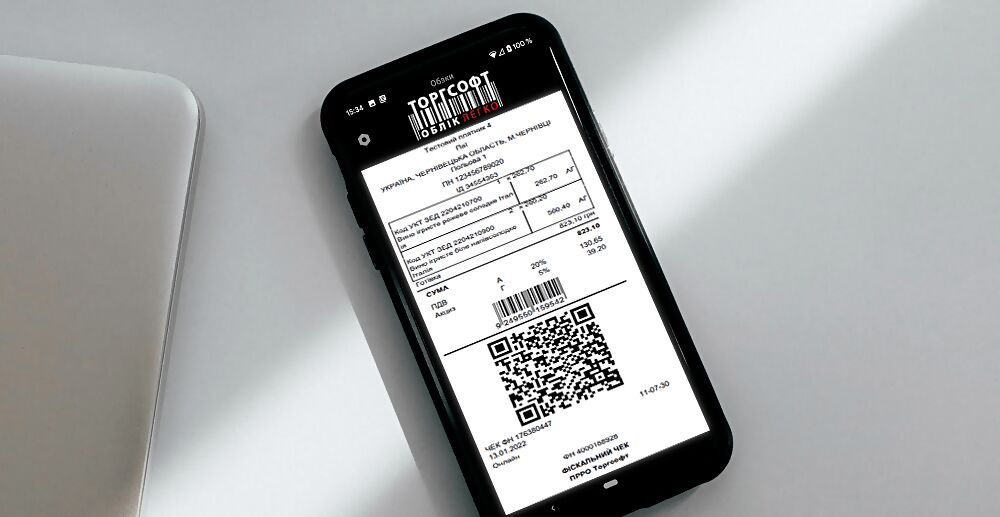
- Check the receipt. If the sale is processed through a PRRO, review the generated fiscal receipt and send it to the customer. The “нефіскальний” (“non-fiscal”) setting generates a sales receipt.
- Check the stock. After the first sale, compare the product quantity in the main program with the expected amount.
If the payment status is unclear after an attempt, first check the transaction in the banking service and the accounting system. Initiate another charge only after determining the result of the previous attempt.
How to check a return and complete the rollout
- Find the original sale. Before processing a return, check the product, quantity, price, and original payment method.
- Separate goods by original sale. The cashier must process goods from different sales documents as separate returns.
- Process a bank refund. If the original payment was made through an integrated bank terminal, the cashier processes the refund through that terminal to the original payment card or using the transaction—the bank operation for the original payment linked to the relevant sale.
- Check the refund amount. A partial refund is possible. The cashier must ensure the refund amount does not exceed the amount paid according to the receipt.
- Check the bank transaction. For a card refund, compare the bank’s result with the Torgsoft document.
- Check the goods quantity. After processing, compare the return document, the actual movement of the returned unit, and the stock in the program. Confirm that the quantity is as expected.
- Train the employee on one item. Go through finding a product, receiving it, selling it, and returning it together using an agreed test scenario. If it involves an actual payment, agree in advance with the accountant on document processing and with the bank on how to check the payment and refund.
- Record the procedure for handling a malfunction. Specify who is responsible for the server, the bank’s contact details, and the information the employee must report: time, amount, document number, and error message, without passwords.
Before launching sales in Ukraine, give the accountant a list of planned transactions and payment methods. Ask them to determine, under current Ukrainian law, which of these transactions require a fiscal receipt, which exceptions and temporary rules apply specifically to them, and whether they may be processed through a PRRO in the mobile app. Agree on the settlement settings based on this assessment, then check one sale and how it appears in Torgsoft and the banking service if the payment is by card.


 Go back to the previous step