


When goods arrive from a supplier, record them in Torgsoft using a goods receipt. This lets the program account for the quantity received, purchase price, and supplier balance. Below are the steps for a regular delivery, along with an explanation of how it differs from entering opening stock.
Before you start: check the delivery
Check the quantity and condition of the goods against the supplier’s document. If there are discrepancies, resolve them before entering the details in the program. It’s a good idea to record the supplier’s document number in the goods receipt so you can find the delivery later.
Keep a new delivery separate from opening stock. The «Початкові залишки» (“Opening stock”) option is used when you begin keeping records and enter goods already in the store. For a new delivery, select the supplier so the balance with them is recorded correctly.
Create a goods receipt
- Open Документ → Прихід товару (Document → Goods receipt) and click Додати (Add) or Новий прихід (New receipt).
- Check the date and the accounting center receiving the goods. Select the supplier. If needed, specify the business, the supplier’s invoice number, the payment method, and the purchase currency.
- If payment is in another currency, check the exchange rate against the hryvnia. Confirm that the delivery terms are recorded correctly, then click Записати (Save).
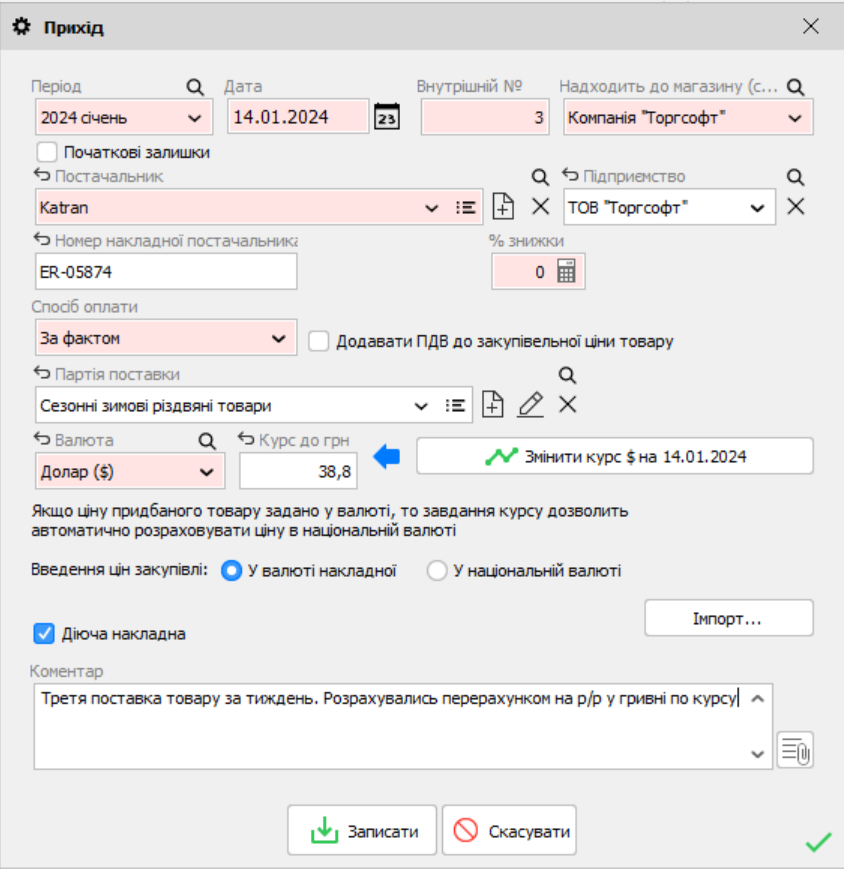
The screenshot shows an example of a completed receipt form. The date, supplier, prices, and exchange rate in your receipt will be different.
Add goods to the receipt
Choose the method that fits your delivery:
- Scan a barcode. If the item is already in the catalog, the program will open its item card. Check the quantity and purchase price for the new batch. If the code is unknown, complete a new item card.
- Search for an item already in the records. Press F11 and select the item from the stock list. This is useful when an item has arrived again and you don’t have a scanner handy.
- Create a new item. Click Додати (Add), select the item type, and enter its name and required details. If the item has no manufacturer barcode, Torgsoft can generate its own code and print a label.
For each item, check the quantity, purchase price, and selling price or markup. If size, material, season, or other details matter, fill them in on the item card. This will help you find the item later and analyze sales accurately.
If the supplier sent the invoice as an Excel file, you can upload the items using Імпорт (Import) instead of entering them manually. After importing, still check the items, quantities, and prices against the supplier’s document.
Account for expenses and check the result
If delivery or other costs need to be included in the cost price, enter them as receipt expenses and recalculate prices according to your accounting rules. Don’t add expenses a second time if they’re already included in the purchase price.
Make sure the receipt status is «Діюча» (“Active”); otherwise, the goods won’t appear under Склад → Стан складу (Warehouse → Stock status). In that section, compare the quantities of several items with the goods actually received. After checking, you can set «Контроль виконано» (“Check completed”) to avoid changing the document by mistake. If goods have already been sold or moved, don’t delete or deactivate the receipt without checking the effect on stock levels.
Video and detailed instructions
The video shows how to create a goods receipt in the Торгсофт Click interface. To work in the desktop program, follow the steps above and consult the «Прихід товару» (“Goods receipt”) help page.
You may also need instructions on opening stock and importing an invoice from Excel.


 Go back to the previous step