


Page 8 - Torgsoft video tutorials
Go to the Blog section
-
12.04.2024
Torgsoft Online Market: catalog and sync

How to prepare products, categories, and descriptions for the Torgsoft Online Market online store.
-
08.04.2024
VTNE-Print 15N2-2 Label-Printing Scales
How the VTNE-Print 15N2-2 scales weigh goods and print a label for checkout sales.
-
08.04.2024
Xprinter XP-420B Label Printer
An overview of the Xprinter XP-420B printer for printing product labels and marking shipments.
-
01.04.2024
Torgsoft Ultra license features
An overview of Torgsoft Ultra features: inventory, multiple checkout stations, payments, customers, and analytics.
-
20.03.2024
Creating a sales quote in Torgsoft
Create a sales quote in Torgsoft by adding products or services, choosing a recipient and template, and sending it to the customer.
-
07.03.2024
Printing Product Labels in Torgsoft
How to select products, the number of labels, and a print template in Torgsoft.
-
14.02.2024
Torgsoft-Start: Stock, Inventory and Reports
A video lesson about stock in Torgsoft-Start: price changes, inventory, discounts, customer management and reports.
-
02.02.2024
Torgsoft-Start: Stock and Sales
A video lesson on getting started with Torgsoft-Start: receiving goods, stock levels, sales, returns, and write-offs.
-
30.01.2024
Canceling a Receipt Printer Job
What to do when a document is sent to the receipt or label printer queue instead of the intended device.
-
11.01.2024
Wireless Scanner Netum NT-1202W
Overview of the Netum NT-1202W wireless scanner for checkout and warehouse use: code scanning, memory, and standalone operation.
-
05.12.2023
Mobitehnika MT-3368B Scanner: Motion Sensor
How to scan codes without pressing a button on the Mobitehnika MT-3368B in motion sensor mode.
-
30.08.2023
Recalculating the Cost of Goods
When and where to run a manual recalculation of the cost of goods in Torgsoft after changing accounting documents.
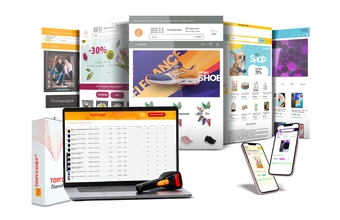

Torgsoft is a ready-made solution for warehouse, financial, and inventory management for small and medium-sized businesses
 Go back to the previous step