



Choose Torgsoft add-on options for specific store needs: transferring website orders, arranging deliveries, reconciling payments, or working with a remote database during connection outages. Before buying, assign a responsible employee, check compatibility with your license and equipment, and run through a complete workflow. You do not need to buy all 12 options.
Include licenses for the required number of workstations, setup, training, external services, and ongoing maintenance in your estimate. Payment terms and licensing units vary by feature. Ask for them to be specified in the invoice and compare them with Torgsoft’s commercial terms. To test the options, prepare products, a customer, and documents that will let the employee assess the outcome of each operation.
- 1. Torgsoft Online Market: a ready-made online store with inventory management
- 2. Online store synchronization: exchanging data with your website
- 3. Nova Poshta integration: creating and tracking shipments
- 4. Mass messaging: SMS, Viber, and email to customers
- 5. Bonuses with an expiration date: rules for accrual and redemption
- 6. Customer profile and Binotel calls: customer agreements and phone inquiries
- 7. Mobile app: stock levels, stocktaking, and reports from a smartphone
- 8. Bank statements: retrieving transactions and matching payments
- 9. Cloud data archive: backups in Google Drive
- 10. Software PRRO: fiscal receipts in Torgsoft
- 11. Torgsoft Hybrid: sales without a connection to a remote server
- 12. Bank terminal integration: sending the amount and checking payment
1. Torgsoft Online Market: a ready-made online store with inventory management

Torgsoft Online Market is suitable if you need a ready-made website connected to your inventory. The platform receives the product catalog, prices, photos, and stock levels from Torgsoft, and transfers orders to the program. To launch it, you need an “Ultra” or “Terminal” license, an active paid subscription, and a prepared catalog. The owner is responsible for the content and sales rules; the launch team handles the technical setup. Account for the built-in Torgsoft data exchange when placing your order so you do not pay for a separate universal synchronization solution for the same task unnecessarily.
Before launch, agree on the domain, payment methods, delivery, package contents, and available server resources. The Torgsoft Online Market page lists packages, subscription terms, and a free 30-day trial. Ask for your catalog capacity, photo storage, and included integrations to be specified in the proposal. Assign someone to manage subscription payments and domain renewal: an overdue subscription may result in the store being blocked and later deleted.
Pre-purchase check: A manager changes the price and stock level of a test product, starts the data exchange, and checks the product page on the website. Then the manager places an order and finds it in Torgsoft with the correct products, quantities, and reservation. Agree on the actual update schedule: some data is transferred on a schedule or on demand, so product availability should be assessed in light of the settings and connection. Plan the launch after the catalog, payments, and delivery are ready.
2. Online store synchronization: exchanging data with your website
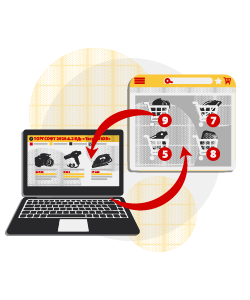
This paid option is suitable for a website that is already operating or being built by a separate developer. You need “Ultra” or “Terminal” and a website that can receive and return the agreed exchange files. The website’s content management system alone does not determine compatibility: the developer must configure how products and orders are handled. Torgsoft exports product data, and the manager processes orders in “Торгівля з випискою рахунка” mode (sales with invoicing).
Before paying, work with the developer to list the fields: product identifier, name, category, specifications, price, stock level, photos, customer details, and payment status. Agree on the formats, file transfer location, schedule, and process for reporting errors. The online store synchronization terms specify connection to a separate workstation, a local network, or a terminal server, depending on the configuration, and a 30-day demo. Include website development work in the estimate separately.
Pre-purchase check: First, manually transfer a small set of products, change one price and quantity, and then import an order back into Torgsoft. The manager should see the correct items and total without duplicated products or documents. After that, test the same workflow on a schedule. Data exchange depends on both systems working; an order received by the program still needs to be processed and shipped, and the payment must be properly recorded.
3. Nova Poshta integration: creating and tracking shipments
This option helps a manager create consignment notes (TTNs), print labels, and track shipments from Torgsoft. You need “Ultra” or “Terminal,” a paid annual option, a Nova Poshta sender account, and an access key for the service’s application programming interface (API). Prepare a suitable printer for label printing. The availability of cash on delivery and payment tracking depends on the sender’s agreement with the carrier.
An administrator adds the sender and access key. The manager creates an invoice and a delivery note, then creates a TTN from the delivery note. For typical parcels, it is convenient to save templates for dimensions and services. Automatic status updates require a scheduled task and a running application server service, which performs the program’s background tasks. The Nova Poshta integration terms provide for annual payment and a 30-day demo; the number of licenses depends on whether the setup uses separate workstations, a local network, or a server.
Pre-purchase check: The manager creates a consignment note for an agreed test shipment and checks the recipient, branch, party responsible for delivery charges, weight, and cash-on-delivery amount. After printing, the manager checks that the label is readable and that a status is received. A TTN arranges delivery and does not replace a fiscal receipt. Sending the buyer a message with the TTN number requires the separately configured mass messaging option, and incoming payments should be reconciled with financial documents.
4. Mass messaging: SMS, Viber, and email to customers

This paid annual option allows employees to select customers and send them promotional or service messages from Torgsoft. You need “Ultra” or “Terminal,” customer contact details, and a configured channel: an external service for short message service (SMS) and Viber messages, or an email client or service for email. SMS and Viber charges are paid separately; a long text may be billed as several messages. The messaging terms provide for licensing per “Ultra” workstation or “Terminal” server, and a 30-day trial.
For a Ukrainian store, it is advisable to base advertising campaigns on recorded customer consent and provide a simple way to opt out. Article 10 of the Law “On Electronic Commerce” establishes the consent rule and separately allows messages without consent when recipients can opt out of further messages. A commercial message must clearly identify itself as advertising and provide direct, simple access to information about the sender, as required by Article 7 of this Law.
The terms for discounts, prizes, and gifts must be clear and readily available. If a message includes a price, state whether taxes are included; for a product with delivery, also state the delivery cost. Employees must take opt-outs into account in subsequent campaigns; a note in a customer’s record should reflect the customer’s wishes.
Pre-purchase check: Create a template with the store name, a clear offer, and an opt-out method. Send it to your own contact details and check the name substitution, link, delivery, and actual cost. Separately, check that a customer who opted out of advertising is excluded. In the mass messaging settings, account for the provider’s requirements for templates and sender identification. To assess a campaign, compare its costs with purchases and margin: revenue generated after a message was sent does not, by itself, prove that the advertising caused all those sales.
5. Bonuses with an expiration date: rules for accrual and redemption
This option adds expiration dates to bonuses in the loyalty program under “Ultra” and “Terminal” licenses. The owner sets the rules; the administrator activates the paid feature and configures a discount card type, a set of discount and bonus terms for a customer group. On the “Бонусна система” tab (bonus system), select automatic write-off of expired bonuses and set the expiration periods. Then, in “Маркетинг — Клієнти” (Marketing — Customers), open the relevant customer record, choose “Бонусна система” (bonus system) as the discount accrual method, and assign the configured discount card type.
A bonus period runs from the date the bonuses are accrued: if bonuses become available later than the sale date, account for that delay. Set a separate expiration period for returned bonuses; if the field is blank, the general expiration period applies. If you manually accrue temporary bonuses, the returned-bonus period in the card type must be greater than zero; otherwise, after a return of a product paid for with those bonuses, they will become permanent.
The purchase and 30-day trial terms specify licensing for separate workstations, a local network, or a server.
The administrator should check that the expiration task runs on schedule. To send notices about when bonuses start or expire, you need the separate paid mass messaging option, templates, a delivery service, and the relevant tasks. The bonus expiration settings provide for separate return rules; set an expiration date for bonuses that previously had no expiration only after the owner has approved the terms, because after making this change it is impossible to restore an unlimited validity period for those bonuses. Customers must understand the terms and restrictions before joining the program.
Pre-purchase check: Accrue bonuses to a test card, then apply them in a subsequent sale using “Додаткові дії — Оплатити бонусами” (Additional Actions — Pay with Bonuses). By default, a sale must retain at least one product not paid for with bonuses; this requirement can be disabled in the discount card type settings. Then check a product return and the expiration of unused bonuses. Reconcile the balance and dates in the bonus movement analysis.
Also run test sales of a product with a product discount, a product included in a promotion, and a product at a wholesale price. Confirm that no bonuses are accrued for these products. Assess the effect using repeat purchases and margin, accounting for redeemed bonuses and messages.
6. Customer profile and Binotel calls: customer agreements and phone inquiries

This option is useful when managers handle many phone inquiries and need to see previous purchases, interests, and agreements. In the program, it is called “Система взаємодії з клієнтами” (Customer Interaction System). The basic customer record and purchase history are available separately from this add-on; the paid option adds interests, reminders, and telephony features. You need “Ultra” or “Terminal.” The “Customer Profile and Binotel Calls” option terms provide for annual payment per “Ultra” workstation or “Terminal” server, and a 30-day trial.
Phone features require a Binotel account, access details from Binotel support, and settings for each user. A softphone must be configured for outgoing calls. Loading the call log for a period when Torgsoft was turned off requires Binotel to authorize your network address. You can use interests and reminders without telephony. Managers should record the outcome of a conversation and the next action so a colleague can continue the conversation.
Pre-purchase check: Call from a test customer’s number, check that the correct profile opens, record an agreement, and create a reminder. Then check the missed call log. Do not collect data that is unnecessary for customer service, and restrict employee access: Articles 6, 11, 12, and 24 of the Law “On Personal Data Protection” set out requirements concerning purpose, grounds for processing, informing customers, and data protection. Advertising messages based on customer interests also require a separate messaging option.
7. Mobile app: stock levels, stocktaking, and reports from a smartphone

The mobile app suits an owner who wants to review performance and employees who need to handle products by the shelves. The paid option is licensed per computer or mobile device under the applicable connection terms. You need compatible program and phone operating system versions, an application server, and user permissions. For access outside the store, the server must be on, connected to the internet, have a static network address, and have a configured port. The mobile app page lists compatibility requirements, commercial terms, and a 30-day trial.
Start with a specific task: give the stockroom worker access to stocktaking and stock levels, the owner access to reports, and the salesperson access to permitted sales operations. In Torgsoft, an accounting center is a store or warehouse for which the program tracks products and operations; check which centers each employee can access. For offline inventory, load the count sheet onto the smartphone in advance and transfer the results to the server after counting. Product photos are sent to the website through separately configured synchronization.
Pre-purchase check: An employee scans a product, checks its price and stock level at the relevant store, and enters the result of a test count. The administrator checks the result in the main database and confirms that the employee cannot access restricted data. Offline stocktaking does not mean that every mode can work autonomously. Fiscal sales and card payments require separate settings, the relevant options, and compatible banking apps.
8. Bank statements: retrieving transactions and matching payments

The paid bank statement feature helps an accountant or owner retrieve transactions from PrivatBank, monobank, and UKRSIBBANK and transfer them to Torgsoft’s financial records. You need access to the relevant account, the bank connection details, and user permissions in the program. Configure “Автоклієнт” (AutoClient) for PrivatBank, an access token for monobank, and keys and authorization for UKRSIBBANK. Before testing, obtain a written proposal specifically for the “Bank Statements” option, specifying the compatible license, licensing unit, payment term, and trial access terms. Include these costs in your estimate along with the cost of the main program under Torgsoft’s commercial terms.
The administrator links the bank account to an accounting account and decides who can see incoming payments, expenses, or all transactions. The accountant retrieves a statement for a period, reviews the payer and payment details, and transfers the transaction to a financial document. An incoming payment can be entered as an unidentified payment, a payment not yet linked to a specific customer invoice, and later matched to the relevant document. The sequence is described in the bank statement settings.
Pre-purchase check: Select a known incoming payment and check the amount, date, direction of funds, and recipient account. Transfer the transaction to Torgsoft, match the unidentified payment it creates to the relevant customer invoice, and only then check that the customer’s balance due has decreased correctly. Mark a transaction that was already entered manually as transferred to avoid duplication. For UKRSIBBANK, account for reauthorization after the token expires. Importing a statement alone does not record a sale or create a fiscal receipt; rules for recording bank fees must be configured separately.
9. Cloud data archive: backups in Google Drive
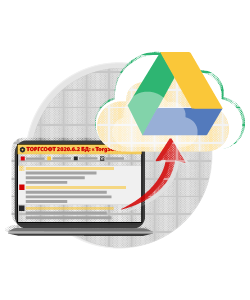
This option creates copies of the database or program directory and sends them to Google Drive on a schedule. It works with “Start,” “Ultra,” and “Terminal” and is paid annually; licensing depends on whether the setup uses separate workstations, a local network, or a server. You need a Google account, enough storage, an internet connection, and a running application server service. The cloud archive terms provide for a free 30-day trial.
The administrator creates a task, selects its type and schedule, sets the retention period, and completes Google authorization. A database archive, program directory, and photo synchronization serve different purposes, so first decide what needs to be restored after a failure. The administrator should schedule local and cloud archiving at different times: if the local archive is created on the standard schedule at 17:00, schedule the cloud task no earlier than 17:10. In the cloud archiving settings, pay attention to the deletion of outdated files; do not use the service folder for unrelated documents.
Pre-purchase check: Wait for the scheduled task to run, review the log, find the archive in Google Drive, and restore it in a separate test environment without replacing the working database. Check the date of the latest documents and the availability of the required settings. Assign an employee to monitor errors and available storage. If the computer is off, the service is stopped, or authorization fails, the store may be left without a new backup until the next scheduled run.
10. Software PRRO: fiscal receipts in Torgsoft
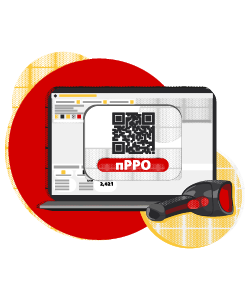
A software registrar of settlement transactions (PRRO) generates fiscal receipts and sends them to the State Tax Service of Ukraine (STS). This paid annual option works with “Start,” “Ultra,” and “Terminal” and must be purchased for each workstation where fiscalization is performed. Before launch, you need to register the business unit and PRRO, provide cashier details, have a valid qualified electronic signature (QES), configure products and taxes, and have an internet connection. The Torgsoft PRRO commercial terms provide for a 30-day trial.
The owner and accountant determine registration and tax settings; the administrator configures the workstation; and the cashier practices opening a shift, making a standard sale, issuing a receipt, and closing the shift. To send a receipt by SMS, Viber, or email, you need configured templates, a delivery service, and the mass messaging option. PRRO for the mobile app is configured separately; the same PRRO cannot be used simultaneously in the desktop program and on a smartphone.
Pre-purchase check: In test mode, the cashier records a sale, and the administrator checks the seller, products, amount, taxes, and document status. After switching to production mode, monitor receipt registration and shift closure. Plan operation without a connection to the fiscal server separately: before starting such transactions, agree on the program’s technical readiness and the legal conditions that apply to your cash register’s offline mode. Activating the option alone does not determine the store’s tax obligations.
11. Torgsoft Hybrid: sales without a connection to a remote server
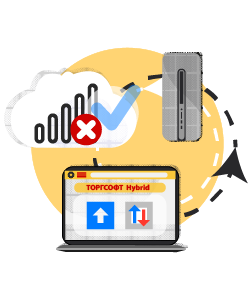
Torgsoft Hybrid is intended for a “Terminal” license when the database is hosted on a remote server. A separate application on a Windows checkout computer stores transactions locally and sends them to the server once the connection is restored. The paid option is purchased for each client connection, meaning each workstation that connects to the server database. It is not intended for local “Start” or “Ultra” installations. The Torgsoft Hybrid terms provide for a 30-day trial, with no second free activation if the trial has already been used.
The administrator installs the application in advance and makes an initial online sale. Torgsoft Hybrid and application server versions must match; after updating the server, you must also update Hybrid on the checkout computer. The checkout computer and equipment must have power. A bank terminal, scales, and fiscalization directly in Hybrid require the relevant separate options for Hybrid, paid annually. The main program and Hybrid use different PRROs with different fiscal numbers; fiscal workflows are configured separately from the exchange of product data.
Pre-purchase check: After the initial setup, temporarily disconnect the checkout from the server, carry out an agreed test transaction, restore the connection, and check that the transaction packages are transferred, the sale appears, and stock levels update in the central database. Returns are available only online. Offline mode does not support complex marketing promotions or working with customers marked as “VIP-клієнт” (VIP customer), a status that allows deferred payment, including selling to them on credit. Card payments also depend on the terminal’s connection to the bank. Employees should know what to do if the transaction queue does not transfer after the network is restored.
12. Bank terminal integration: sending the amount and checking payment
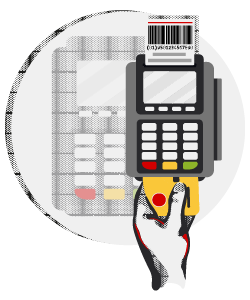
This option sends the purchase amount to a point-of-sale (POS) payment terminal and returns the transaction result to Torgsoft. You need an agreement for acquiring services (the bank’s service for accepting card payments), a compatible model and exchange protocol, a proper connection, and a paid annual option for each computer or device. It works with “Start,” “Ultra,” and “Terminal.” The bank terminal integration terms provide for a one-time free activation of a 30-day trial.
The bank provides the terminal settings and required drivers; the administrator configures each workstation and the merchant, a trader profile that identifies the recipient of the payment. If several business owners use the checkout, separately check that each profile corresponds to the correct settlement account. Whether payment data is transferred to the fiscal receipt depends on the checkout settings and the terminal’s ability to return that data. Connection details are provided in the terminal integration instructions.
Pre-purchase check: Make an agreed test payment, and check the amount on the device, the bank confirmation, and the record in the program. Separately test a refund for the test payment, a cancellation if your connection supports it, and what happens when the response timeout expires. After cancellation, check the result with the bank and in Torgsoft’s records: a service cancellation operation may not create financial documents in the program. Before retrying, the cashier must establish the first transaction’s status through the terminal or bank to avoid charging the customer twice. The terminal slip confirms a payment and does not replace a fiscal receipt. Test your specific connection, especially if Torgsoft runs through a remote desktop.
How an owner can prioritize options
Write down the problem, how often it occurs, and how much employee time each operation takes. Assign someone to run the test and agree on what counts as a successful result. If the equipment or external service is not ready, complete that preparation first so the trial period can be used to assess the whole process.
| Store situation | What to consider first | What the test should show |
|---|---|---|
| A ready-made website is needed | Torgsoft Online Market | Product data is updated and an order arrives with the correct contents |
| The store already has its own website | Online store synchronization | The developer has enabled data exchange, fields match, and errors are visible to the responsible person |
| The manager regularly copies parcel details | Nova Poshta integration | The consignment note and label contain the correct details and services |
| Campaigns for regular customers are needed | Mass messaging; add expiring bonuses if needed | Consent and opt-outs are accounted for, messages are delivered, and bonuses are written off according to the rules |
| Managers lose track of phone agreements | Customer profile and Binotel calls | A call opens the right customer profile and the next action is recorded |
| Employees work by the products and the owner works outside the store | Mobile app | The required modes are available, permissions are restricted, and the transaction appears in the database |
| The accountant manually enters incoming payments | Bank statements | A payment is matched to the correct document without duplication |
| There is no regular backup outside the work computer | Cloud archive | A copy is created on schedule and can be restored |
| The store needs fiscalization in Torgsoft | Software PRRO | Registration, keys, details, and receipt transfers are configured |
| The checkout loses access to a remote database | Torgsoft Hybrid | Local sales are transferred after the connection is restored |
| Cashiers make mistakes entering card payment amounts | Bank terminal integration | The amount, confirmation, and records match; the steps to take if a failure occurs are clear |
How to calculate the total cost and potential savings
Illustrative example, not a pricing offer. Suppose the licenses needed for the first year cost UAH 6,000, setup costs UAH 3,000, and training costs UAH 1,500. Internal preparation takes 10 hours at a labor cost of UAH 200 per hour, adding UAH 2,000. External services cost UAH 300 per month, or UAH 3,600 per year. The total cost for the first year is 6,000 + 3,000 + 1,500 + 2,000 + 3,600 = UAH 16,100.
If, after implementation, an employee saves one hour on each of 22 working days per month, the value of the time freed is 1 × 22 × 200 = UAH 4,400 per month. Assuming that time is used for productive work, the estimated effect after monthly service costs is UAH 4,100. The initial costs of UAH 12,500 correspond to approximately 3.1 months of that effect. This estimate is based on illustrative assumptions: if wage costs have not actually decreased, assess the time freed by the additional tasks completed.
After the trial, the owner should receive a brief summary: which operations were completed, how long they took, which errors remain, and who will resolve them. Before payment, record the options, number of licenses, renewal dates, included work, and external service costs.
Legal requirements for handling customer data
For customer databases, messaging, delivery, and backups, establish the purpose of data processing and an appropriate legal basis for each process. When collecting data from a buyer, explain who processes it, for what purpose, which information is collected, to whom it is transferred, and what rights the person has. For other cases of data collection, Article 12 of the Law “On Personal Data Protection” requires notice within 30 working days, except for statutory exceptions.
Transfer customer contact details to the carrier and messaging service with the customer’s consent, and without consent only in cases specified by law. Tell the customer to whom their data will be transferred and restrict access to backups. Decide who will handle requests for access, data correction, and withdrawal of consent under Article 8 of this Law. A sole proprietor is personally responsible for protecting the personal data they possess, under Article 24.
Official legal sources
- Law of Ukraine “On Personal Data Protection” dated 01.06.2010 No. 2297-VI: Article 6 — purpose, relevance, and processing periods; Article 8 — individual rights; Article 11 — grounds for processing; Article 12 — information when collecting data; Article 14 — data transfer; Article 24 — data protection.
- Law of Ukraine “On Electronic Commerce” dated 03.09.2015 No. 675-VIII: Article 10 — consent, the right to opt out, and requirements for commercial electronic messages.
 Go back to the previous step